Don't Delete That Bad Photo: 25 ChatGPT Photo-Fix Prompts for Messy Hair, Photobombers, Dark Shots and Blur
Messy hair, a stranger behind you, a face that's too dark, closed eyes, camera shake: upload the photo to ChatGPT and paste a prompt that says what to fix and what must not change. Here are the 10 most-used prompts with illustrative images and a table of which kinds of blur can be fixed; all 25 are free in the toolbox. The English names are made-up shortcuts, not official commands; the comparison images are illustrative search images, so test with your own photos.
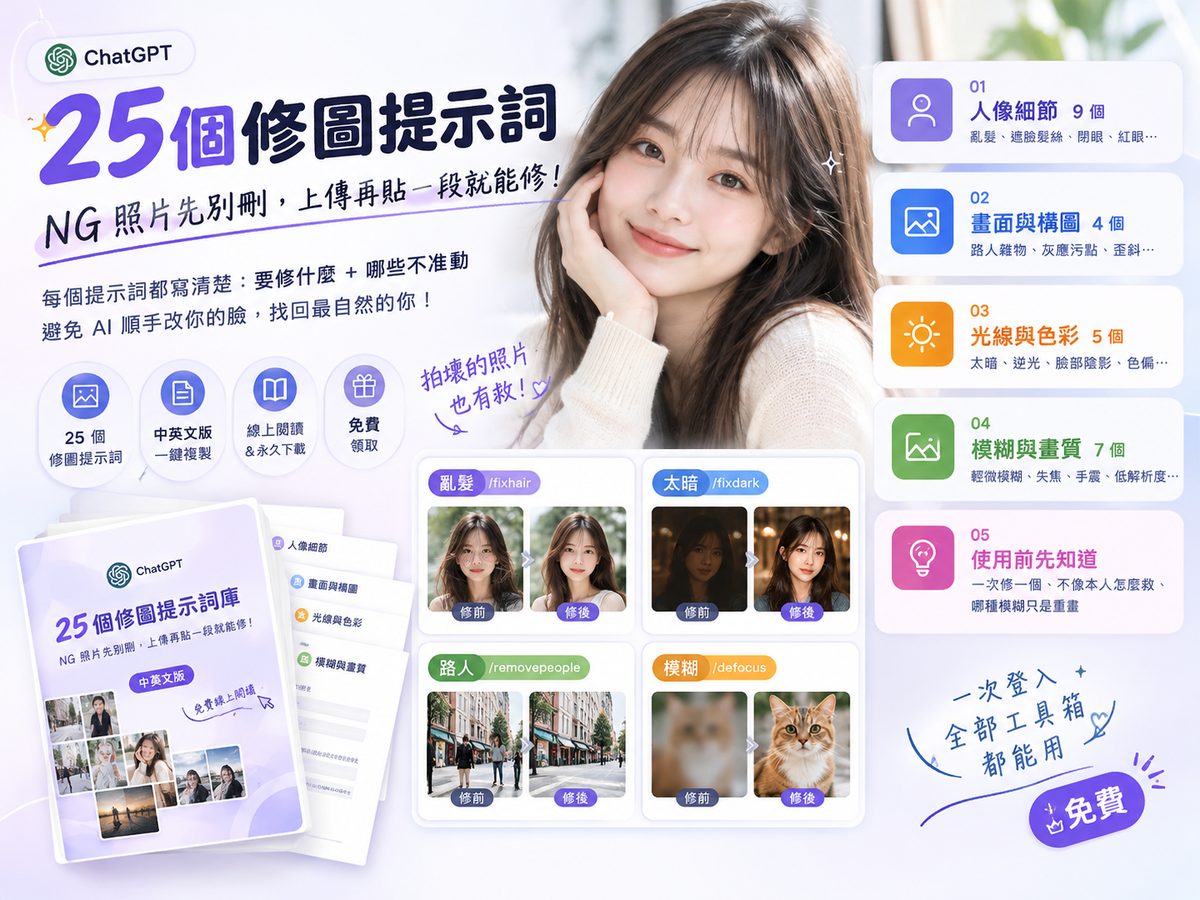
Don't delete that bad photo yet. Messy hair, a stranger in the background, a face that's too dark, someone blinking, a little camera shake — upload the photo to ChatGPT and paste a prompt that spells out what to fix and what must not change. Here are the 10 you'll use most, with when to use each and an illustrative image. All 25, sorted into four groups, are free in the toolbox.
① The English names (like
/fixhair) are shortcut names I made up so they're easy to remember. They are not official ChatGPT slash commands, and typing them alone isn't guaranteed to do anything. How to use them: upload your photo first, then paste the matching prompt.② The before/after images in this post are illustrative images found through image search, from various AI photo-editing tool websites. They are not results of running these prompts in ChatGPT. Each image is credited underneath. Test with your own photos and prompts to see what you actually get.
TL;DR:
① Two steps: upload the photo → paste the prompt. The English names are just labels.
② Every prompt has two halves: what to fix, and what to keep (facial features, hair color, composition, lighting). The most common AI photo-fix failure isn't a bad fix — it's quietly changing your face.
③ This post has the 10 most-used prompts; all 25 are in the toolbox, in four groups: portrait details (hair, eyes, skin, teeth, clothes), scene and composition (photobombers, dust spots, tilt, selfie distortion), light and color (too dark, backlight, shadows, color cast, haze), blur and quality (blur, focus, shake, low resolution, old photos).
④ Mild problems have the best odds. With heavy blur or long streaks, AI mostly redraws something plausible instead of restoring it.
⑤ Always keep the original of important photos, and don't treat AI-filled details as fact.
How to use them: upload + paste
- Start a new chat and upload the bad photo.
- Paste the matching prompt. If you want something specific removed, add where it is — for example, "the person in the grey jacket on the left."
- Not happy? Add one specific correction, like "make the hair look more natural, not puffier" or "don't brighten the face that much." That works better than pasting the whole prompt again.
Why spell out "don't change my features"? By default, AI nudges faces toward its idea of a standard face. It's the same logic as my post on AI travel photos of yourself: if you don't say "don't," it will.
The 10 prompts you will use most
These are the problems people run into most. The other 15 are listed below with when to use them, and all 25 are in the free toolbox kit.
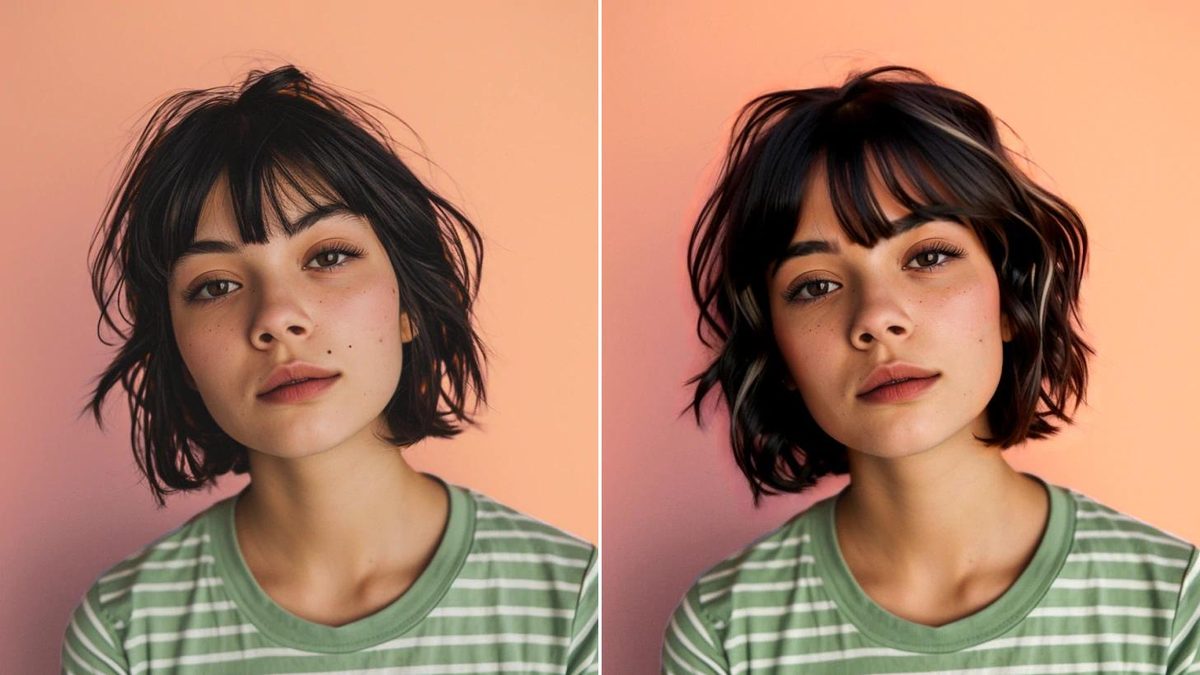
1. /fixhair Tidy messy hair Try first
Use for: hair sticking up, flyaways, untidy bangs.
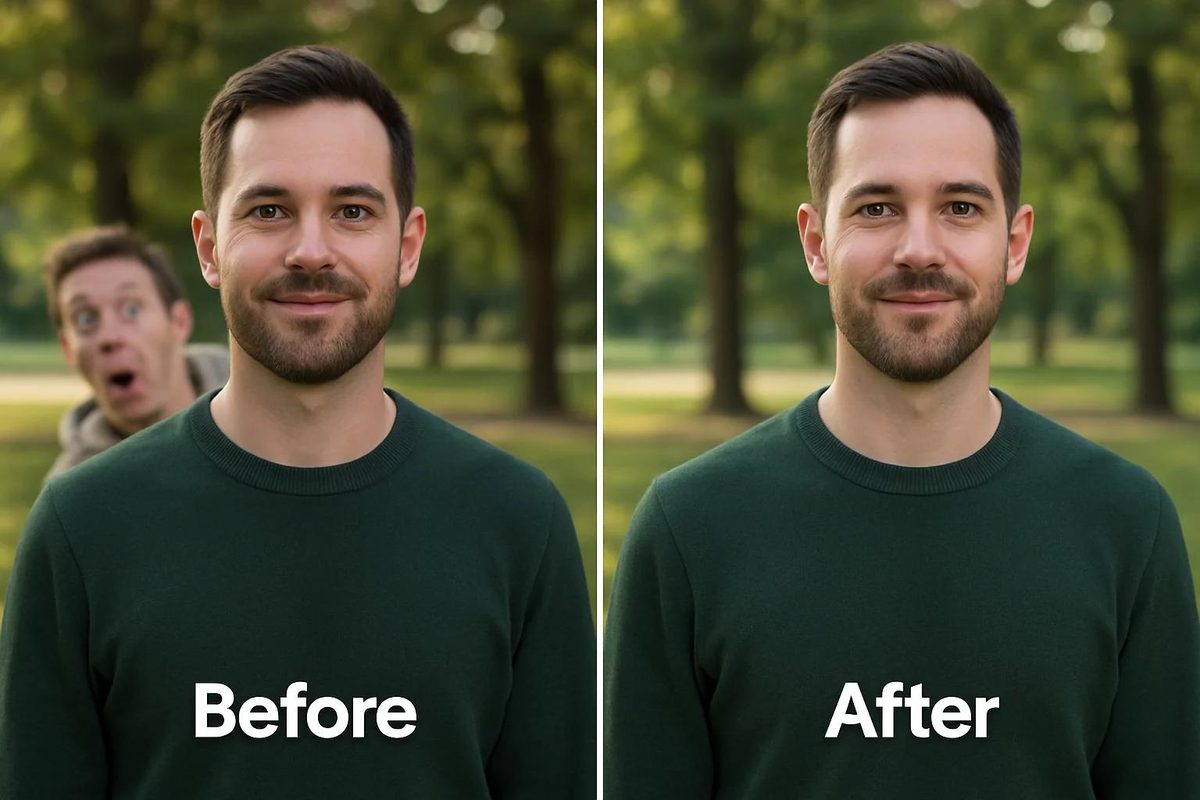
2. /removeobject Remove people and clutter
Use for: strangers behind you, trash cans, power lines, clutter.
Name the objects — "the trash can on the right and the wires at the top" — so AI knows exactly what to take out.
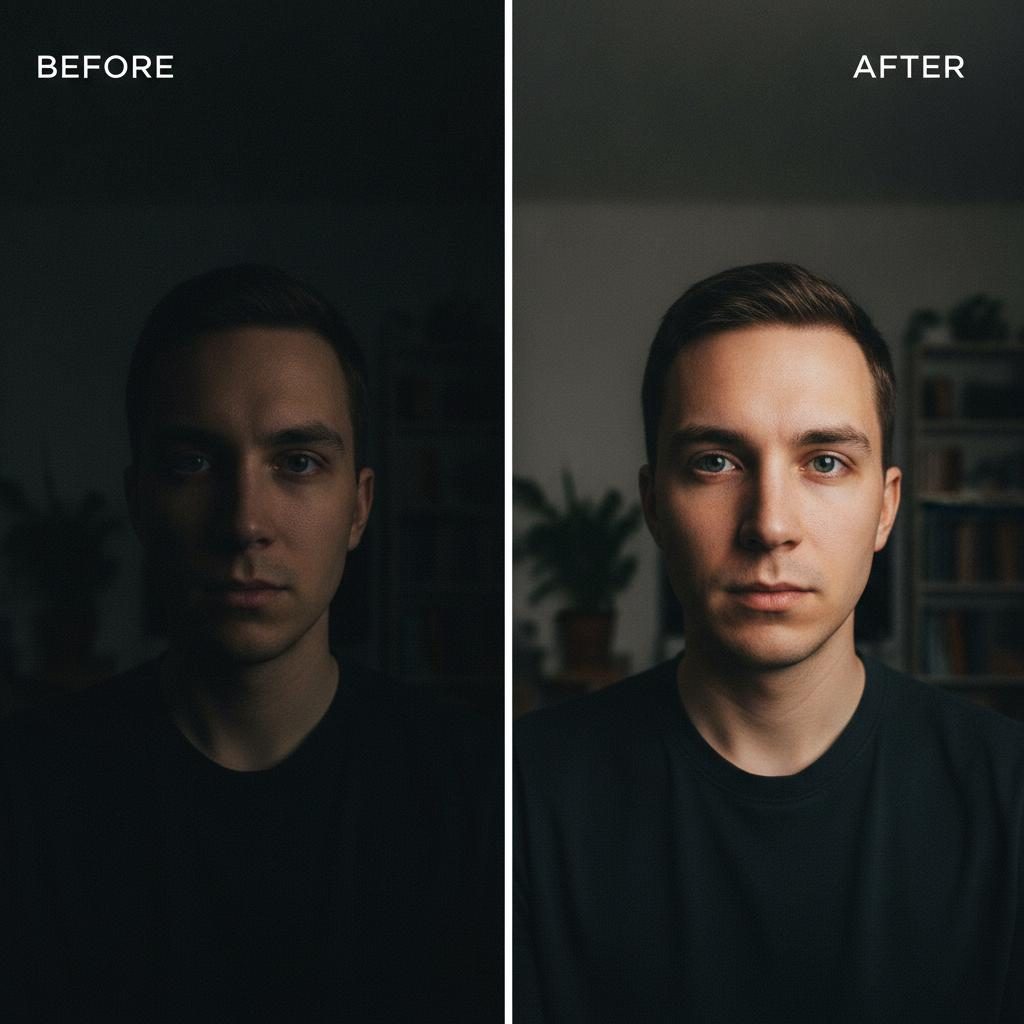
3. /fixlighting Fix exposure
Use for: photos that are too dark, heavy shadows on the face.
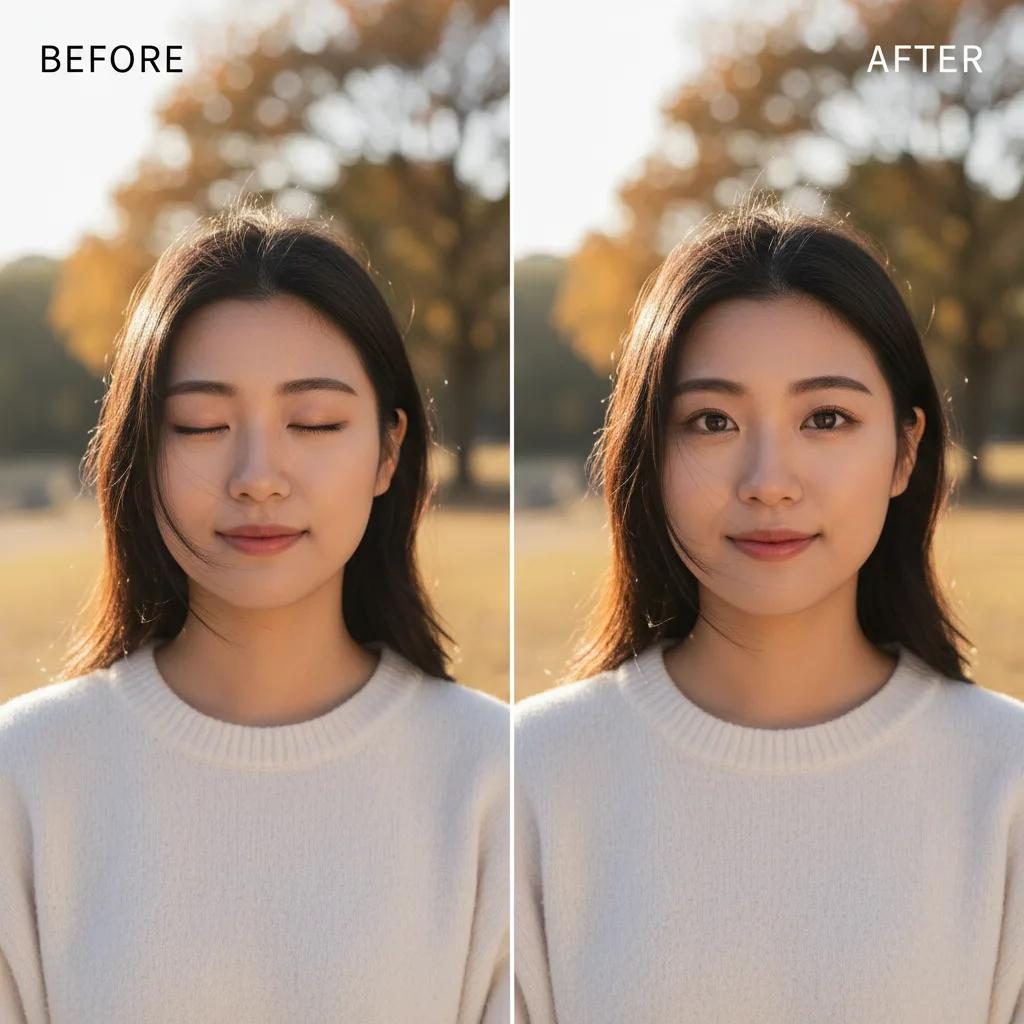
4. /openeyes Fix closed eyes
Use for: someone blinking in a group shot, a selfie where your eyes closed.
Upload a photo of the same person with their eyes open as a reference. Without one, AI has to imagine the eyes, and they may not look like the real person.
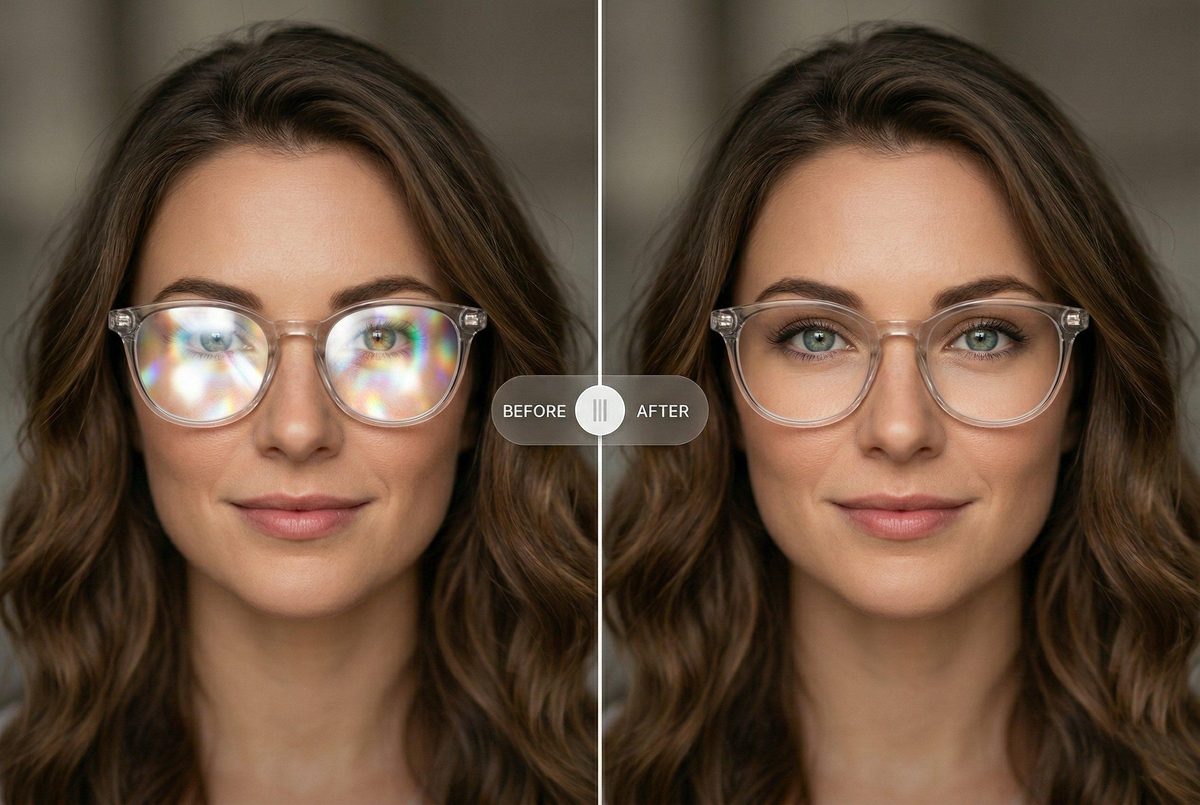
5. /removeglare Remove glasses glare
Use for: reflections on lenses that hide the eyes.
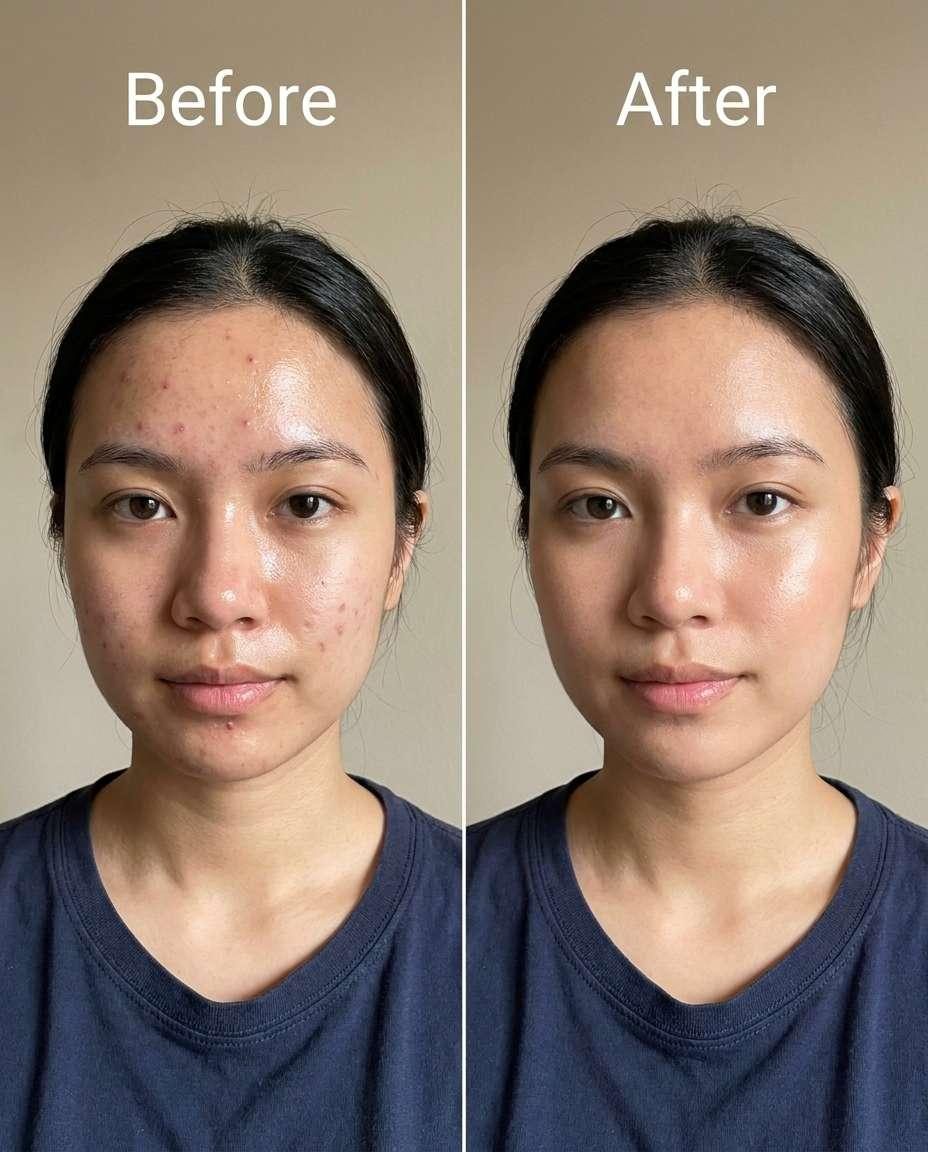
6. /skinretouch Retouch skin
Use for: a sudden breakout, redness, small spots.
7. /fixbacklight Rescue a backlit shot
Use for: a bright background with the person in the dark.
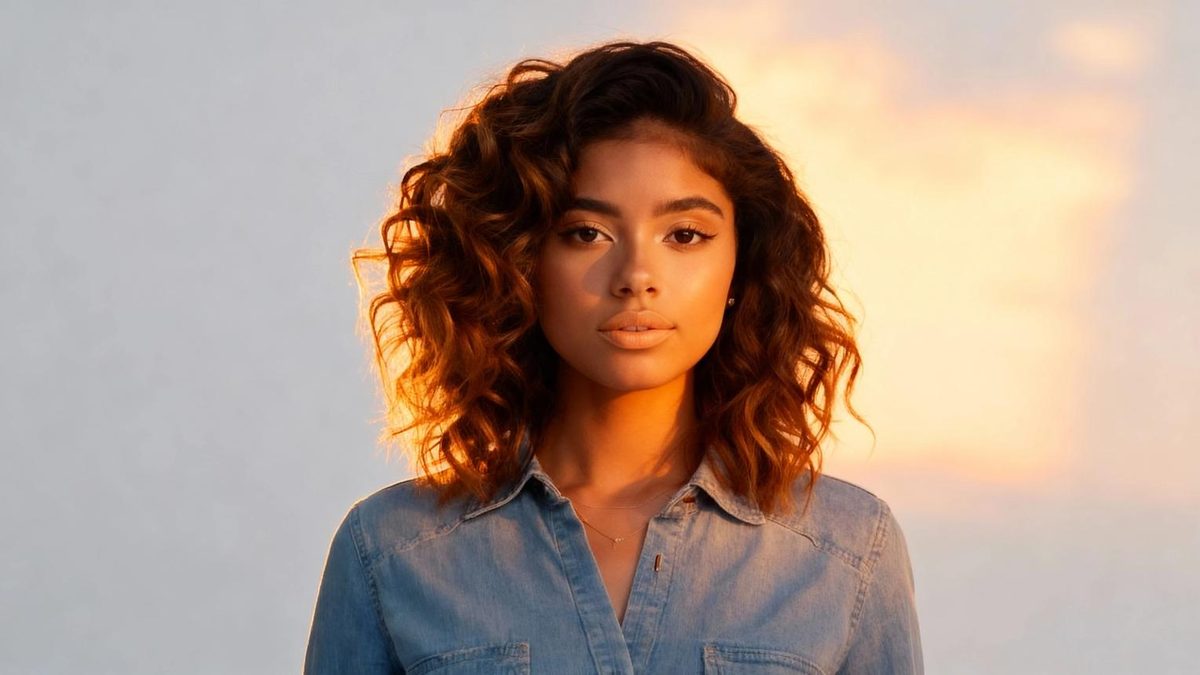
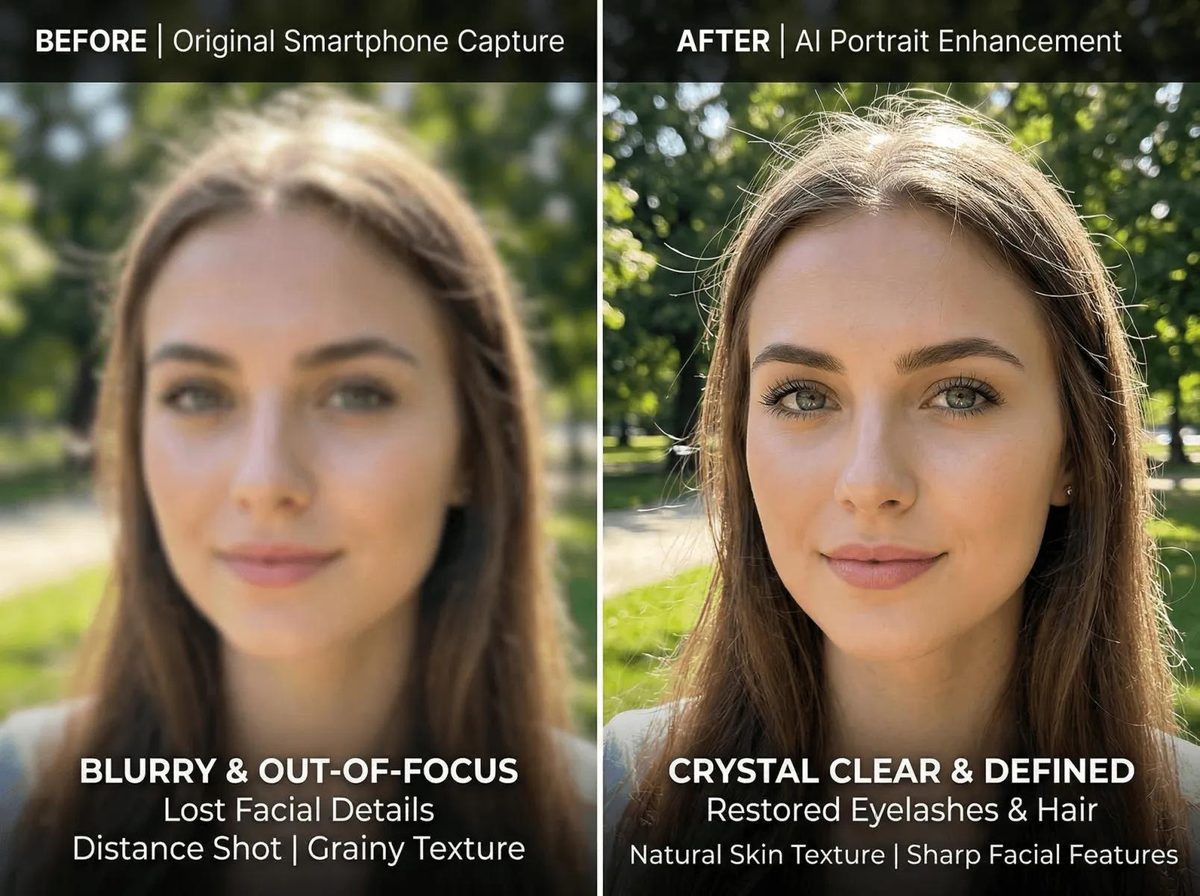
8. /deblur Reduce blur
Use for: slightly out of focus, unclear detail.
Badly out-of-focus photos cannot always be saved, and a sharper result is not the same as an accurate restoration.
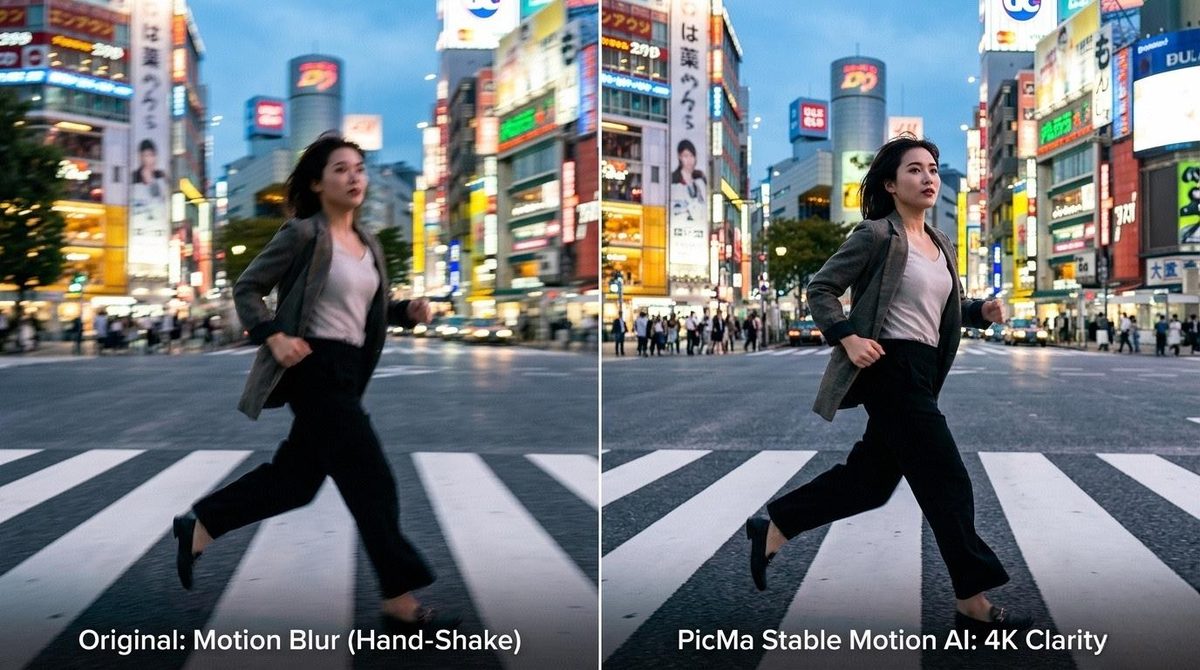
9. /fixmotionblur Remove motion blur
Use for: the subject was moving or walking, and the face or body has streaks.
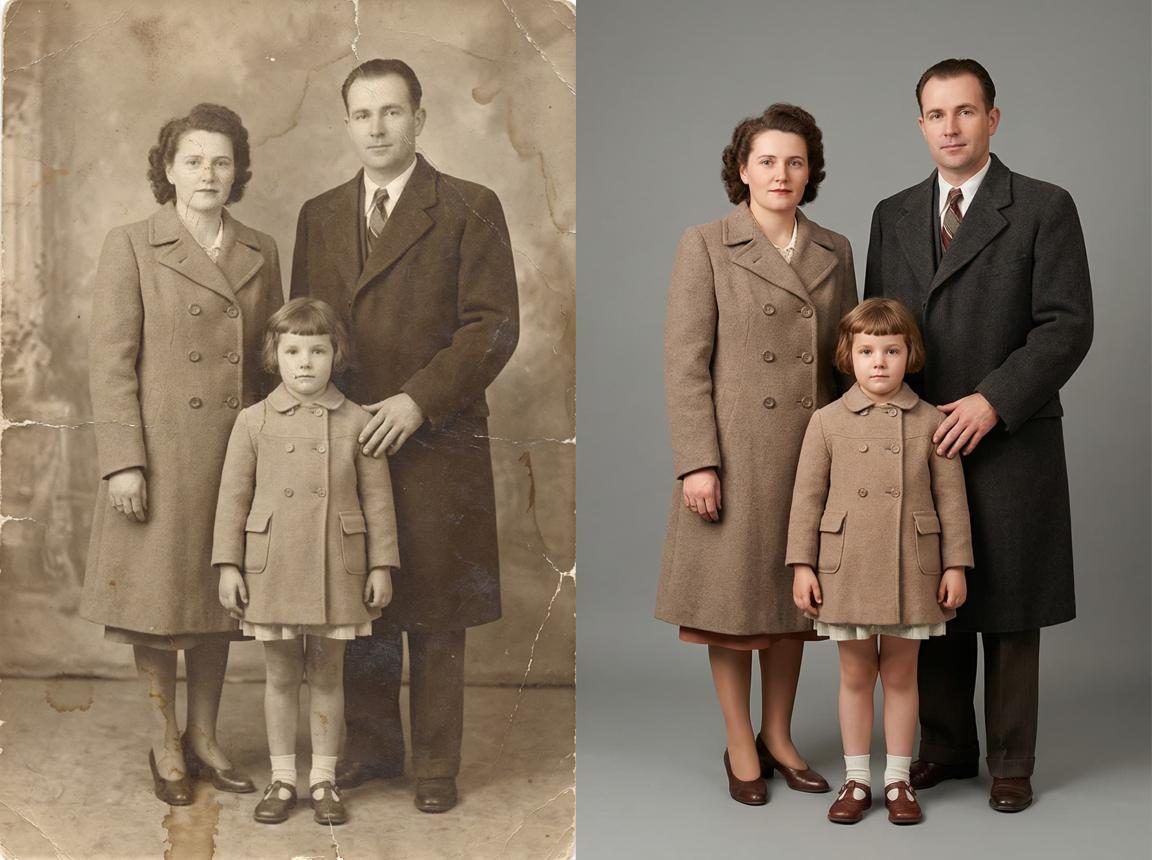
10. /restoreold Restore an old photo
Use for: old prints that are yellowed, scratched, dusty or faded.
The other 15: when to use them
The full prompts and an illustrative image for each are in the free toolbox kit. Find the situation that matches your photo:
| Category | Prompt | Use for |
|---|---|---|
| Portrait details | /movehair Move hair off the face | bangs over the eyes, hair covering the face. |
| Portrait details | /fixredeye Fix red-eye | flash photos where the pupils came out red. |
| Portrait details | /darkcircles Soften dark circles | obvious dark circles or shadows under the eyes after a late night. |
| Portrait details | /whitenteeth Brighten teeth naturally | yellowish or uneven-colored teeth when smiling. |
| Portrait details | /fixwrinkle Smooth clothing wrinkles | crumpled clothes that make the photo look sloppy. |
| Scene and composition | /removedust Remove dust and spots | sensor spots, dust, small stains on walls or scattered specks. |
| Scene and composition | /straighten Straighten a tilted photo | a crooked horizon, buildings that look like they are leaning. |
| Scene and composition | /fixdistortion Fix selfie distortion | a selfie taken too close, so the nose or face proportions look off. |
| Light and color | /softenshadow Soften harsh face shadows | harsh midday sun leaving dark eye sockets and a heavy nose shadow. |
| Light and color | /fixcolor Fix a color cast | heavy yellow indoor light, photos that look too green or blue. |
| Light and color | /fixcontrast Fix a hazy, flat photo | photos that look foggy and lack contrast. |
| Blur and quality | /fixfocus Fix out-of-focus photos | missed focus, the whole photo looks soft. |
| Blur and quality | /fixcamerashake Fix camera shake | your hand moved when you pressed the shutter and the whole photo is smeared. |
| Blur and quality | /enhanceresolution Improve low resolution | a photo that's too small and turns pixelated when enlarged. |
| Blur and quality | /sharpen Boost sharpness | slightly soft photos with fuzzy edges. |
Sign in to get the link. All 25 prompts in four groups, each with an illustrative image and one-click copy, in English and Chinese.
Which kinds of blur can actually be fixed?
| Blur type | Chance of fixing | Notes |
|---|---|---|
| Slight camera shake | Medium | Depends on how long the streaks are |
| Subject motion streaks | Medium-low | Facial detail may not come back |
| Slightly out of focus | Medium | Worth trying |
| Badly out of focus | Low | AI may just generate plausible-looking detail |
| Heavy shake, long streaks | Low | The original information may be gone |
If you only try one, start with /fixmotionblur — "the person came out blurry, can it be saved?" is the most common case. Just remember: when AI turns a blurry face sharp, the features it fills in aren't necessarily real. For keepsake photos or anything used to identify someone, keep the original.
Sign in to get the link. All 25 prompts sorted by problem, each with one-click copy, in English and Chinese.
FAQ
Q1: Does typing /fixhair in ChatGPT work?
Not reliably. These are shortcut names I made up, not official ChatGPT slash commands. Upload your photo and paste the matching prompt.
Q2: The fixed photo doesn't look like me anymore. What now?
Add: "Keep my original facial features and face shape, only fix ___." If it still looks off, start a new chat and upload the original again instead of editing the version that already went wrong.
Q3: Can I fix several problems in one go?
You can paste two prompts together, but one at a time is easier to control. Fix the most obvious problem first, then fix the next one on that result. If something breaks, you'll know which step did it.
Q4: Can a very blurry photo be saved?
Mild blur, maybe. Heavy blur, unlikely. Detail that isn't in the original has to be guessed, so it may look sharp without being accurate.
Q5: Are the comparison images in this post made with ChatGPT?
No. They are illustrative images found through image search, from various AI photo-editing tool websites, to show roughly what each fix looks like. Test with your own photos and prompts for real results.
Want to bring AI photo editing and image generation into your brand's content workflow? Get in touch.