Claude in Chrome: A Full Setup Guide to Let AI Actually Operate Your Browser
Stuck hunting for a setting on a site you've never used, then getting an outdated answer when you paste a screenshot to AI? The Claude in Chrome extension lets Claude click and operate right on your screen instead. Here's the full install-to-use walkthrough, including which plans support it and what that orange highlight actually means.

Have you ever landed on a back-end system you've never used before, hunting for a setting that's nowhere to be found? You finally find a tutorial, only to discover the platform got updated and the screens don't match at all. So you screenshot the page and ask an AI — and it just hands you outdated, pre-update information anyway, leaving you to hunt for the answer step by step on your own.
There's actually a tool that solves this directly now — Claude in Chrome. In short, it's a browser extension from Anthropic (the company behind Claude). Once installed, Claude gets an extra "mouse" — it can click, type, scroll, and capture screenshots right on the exact webpage you have open. Instead of just typing out steps for you to follow, you tell it what you need done, and it actually does it.
Install from the Chrome Web Store
Before you start: who can actually use it?
The extension itself is free to install, but actually using Claude to operate your browser currently requires a paid plan — Pro, Max, Team, or Enterprise. Free accounts can't use it yet. If you're on the free plan, you can still install the extension now and use it once you upgrade or once the feature rolls out more broadly.
Step 1 | Log in to your Claude account
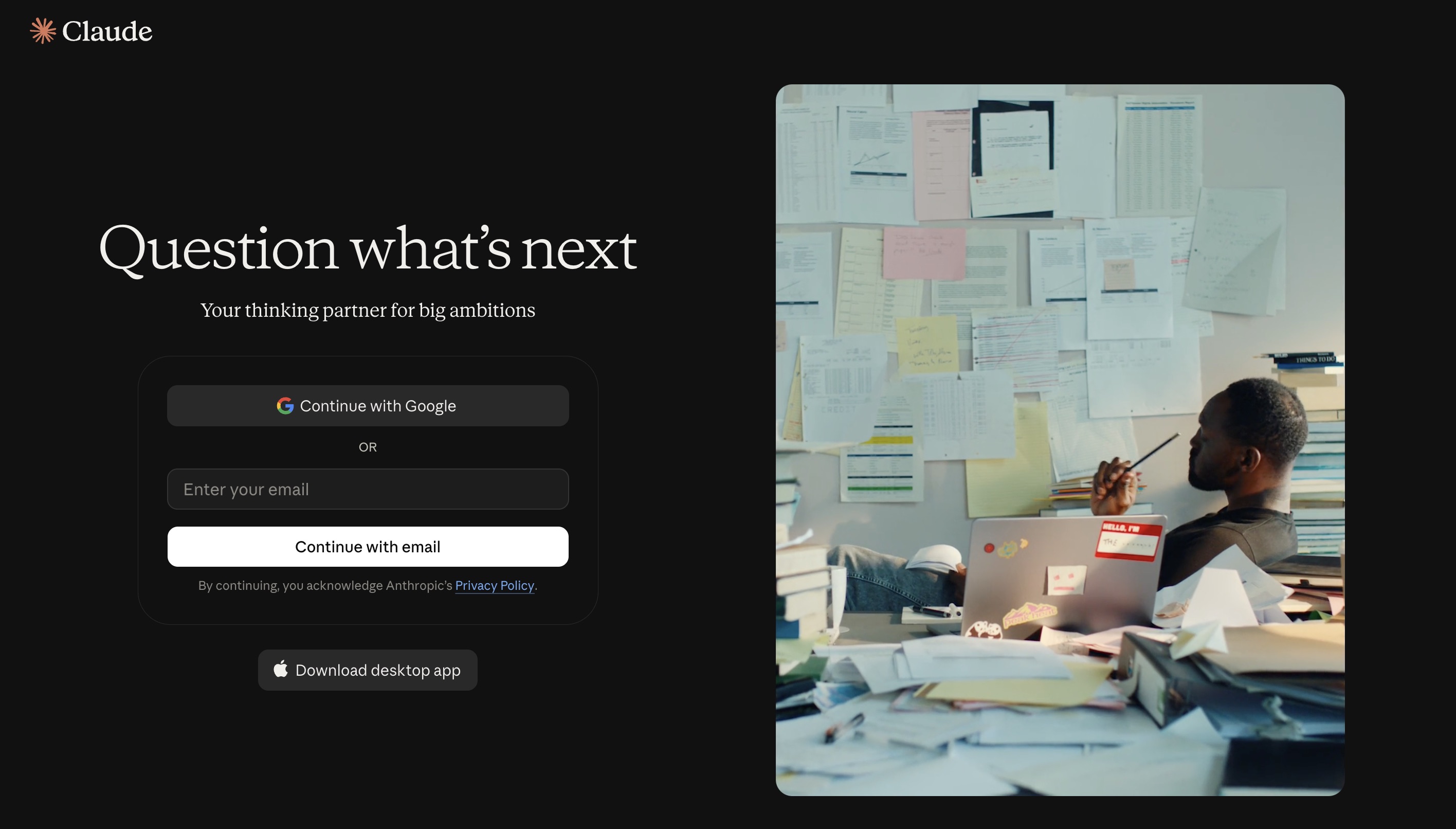
Go to claude.ai/login and sign in with your Google account or email. No account yet? You can register on the spot.
Step 2 | Install the extension from the Chrome Web Store
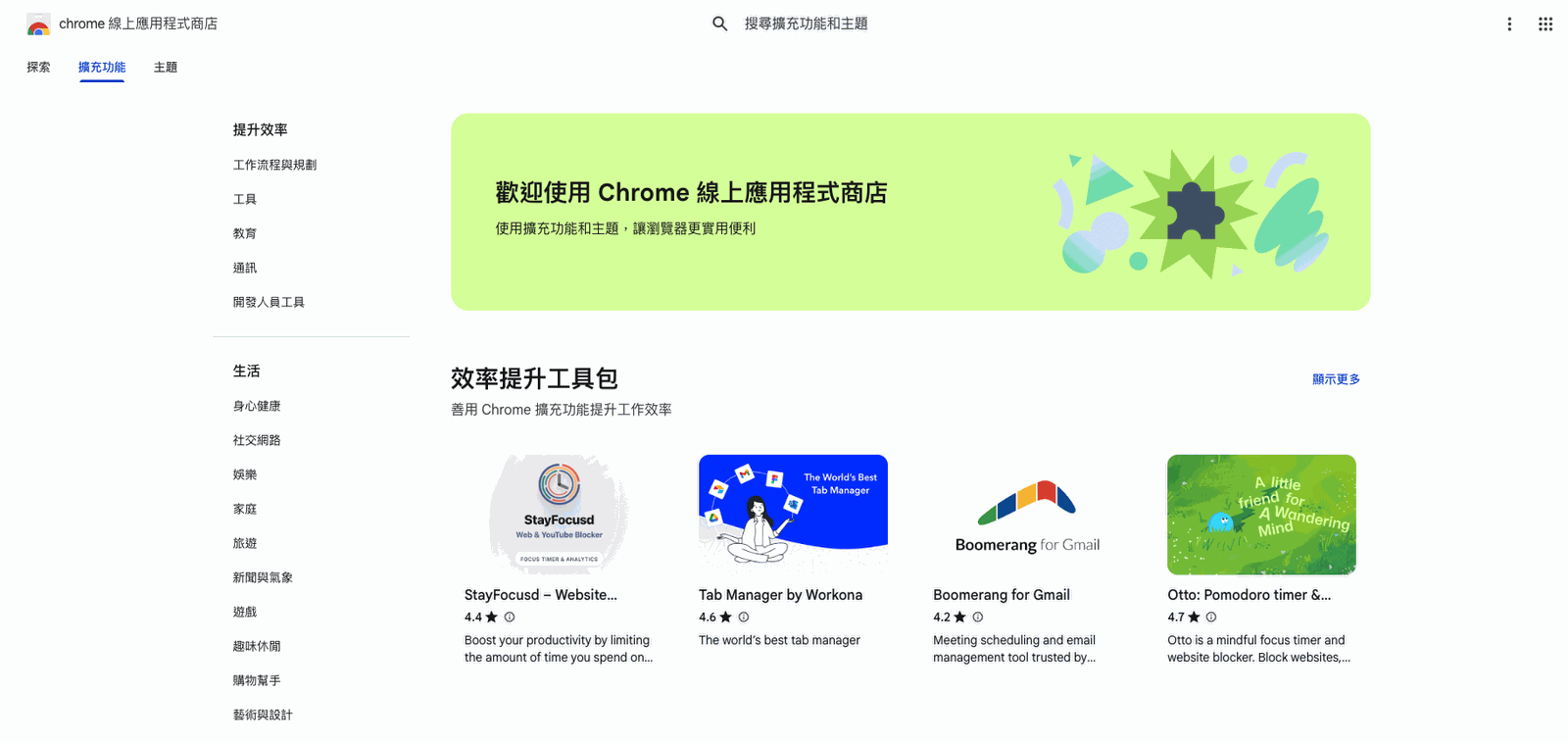
Open Chrome and head to the Chrome Web Store.
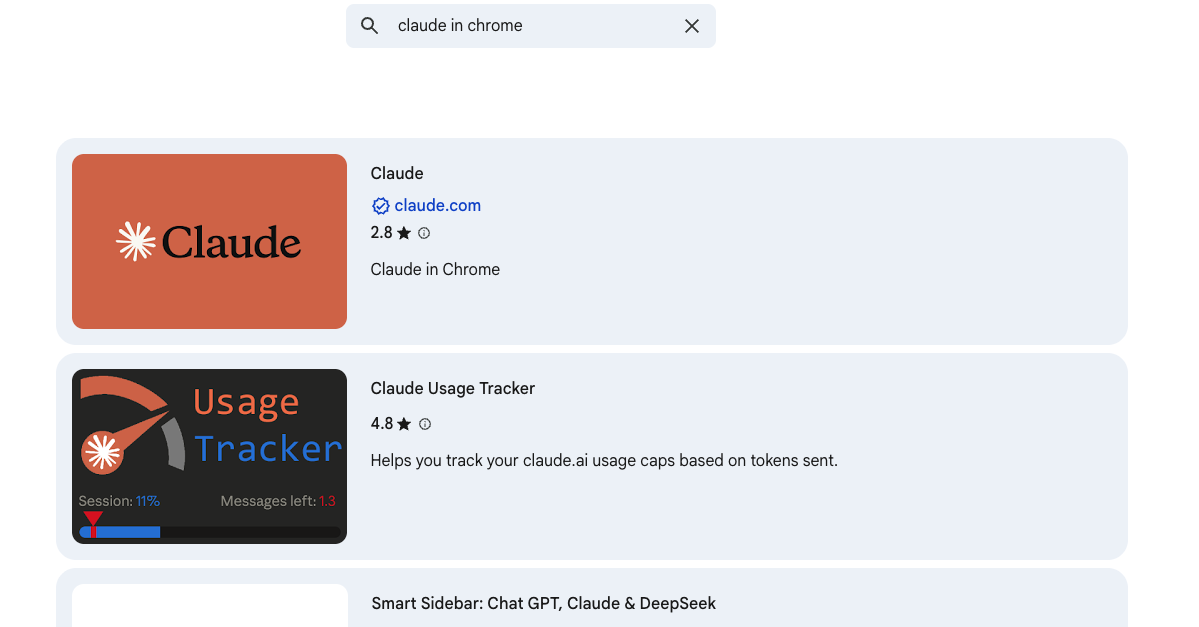
Search "claude in chrome" in the search bar. The first result — the orange Claude icon verified by claude.com — is the one you want.
Click into it, then hit "Add to Chrome" in the top right to finish installing.

Step 3 | Open the Claude side panel
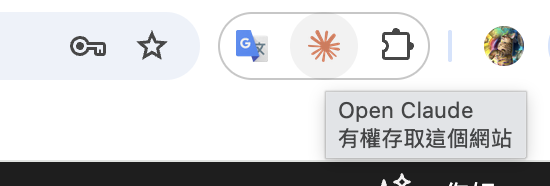
Once installed, you'll see a new orange Claude icon in the "Extensions" area at the top right of your browser. Click it, and the Claude chat panel slides open on the right side of the screen.
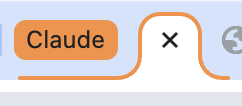
You'll also notice a new "Claude" tab group appears in your tab bar, so you can see at a glance which tabs Claude is currently working in.
Step 4 | Give it an instruction and let Claude take over
Now for the main event. In the side panel, describe what you need — for example: "Check this website's plugins for updates, and if any need updating, update them and confirm compatibility."
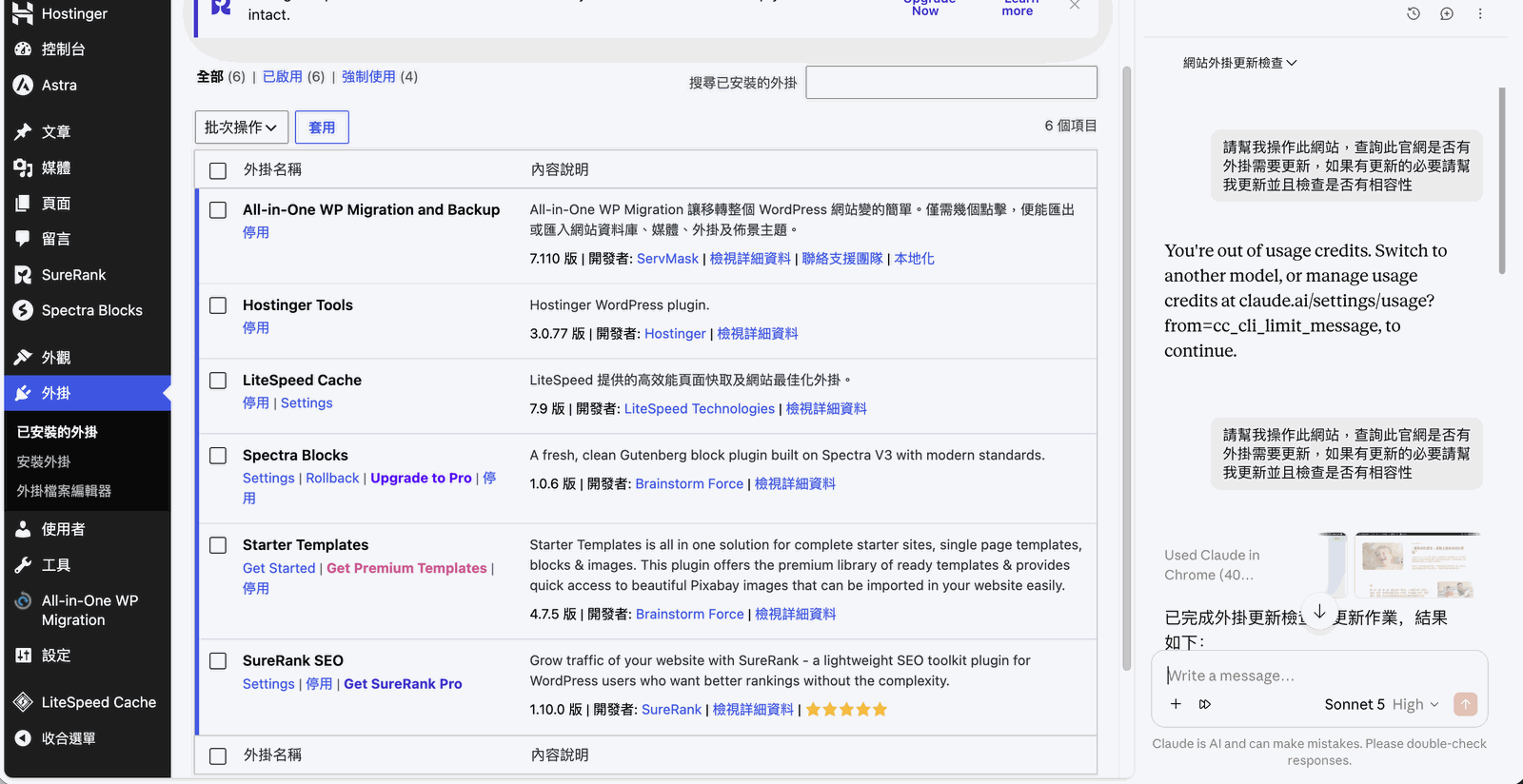
Once you send it, Claude will actually act on the webpage in front of you — clicking, switching pages, scrolling. Whatever section it's currently working on gets a visible orange outline, so you always know exactly where it's operating. A "Stop Claude" button also sits in the bottom right the whole time, so you can interrupt it mid-task whenever you want — no need to worry about it going off and clicking things unsupervised.

The panel also logs every action it's taking in real time — things like "Navigating to..." or "Capturing page" — so you always know exactly which step it's on.
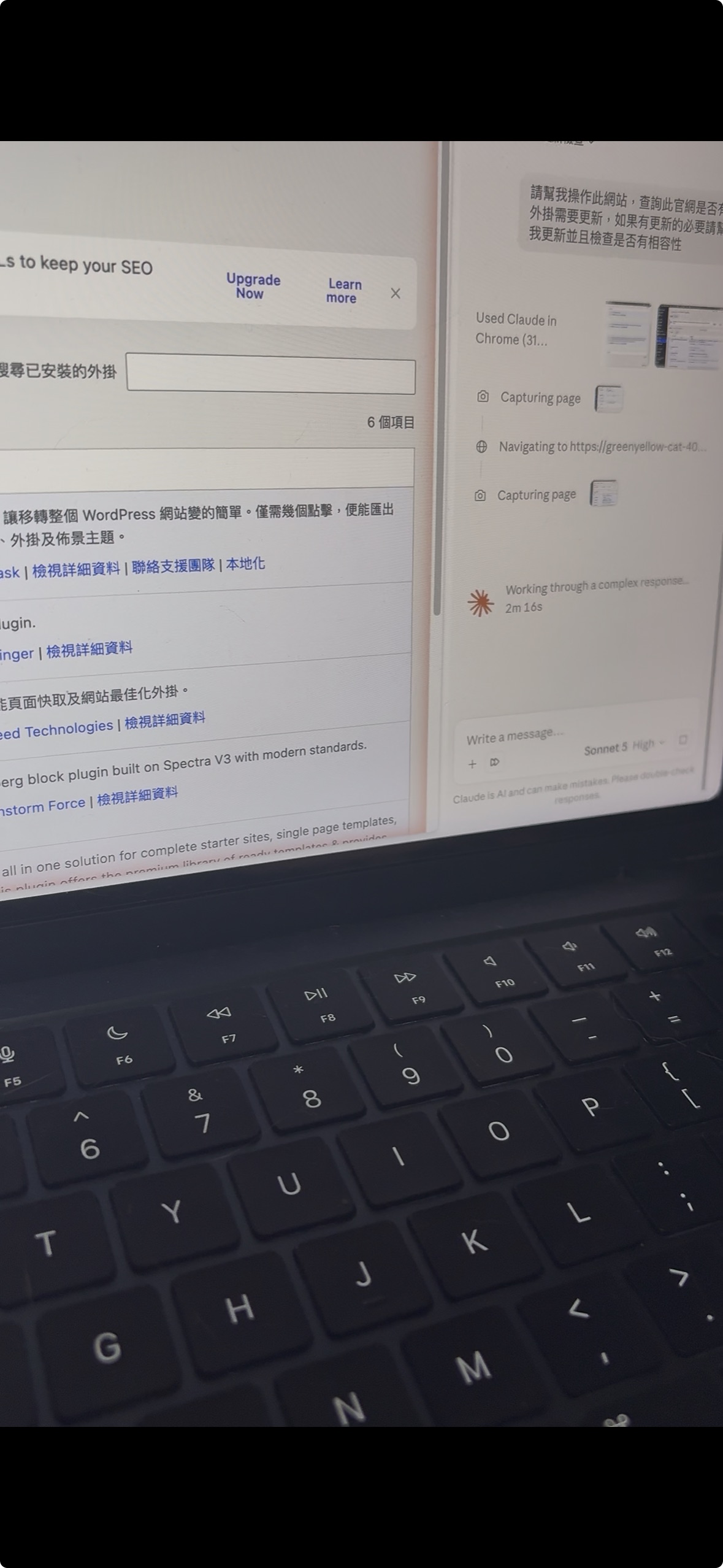
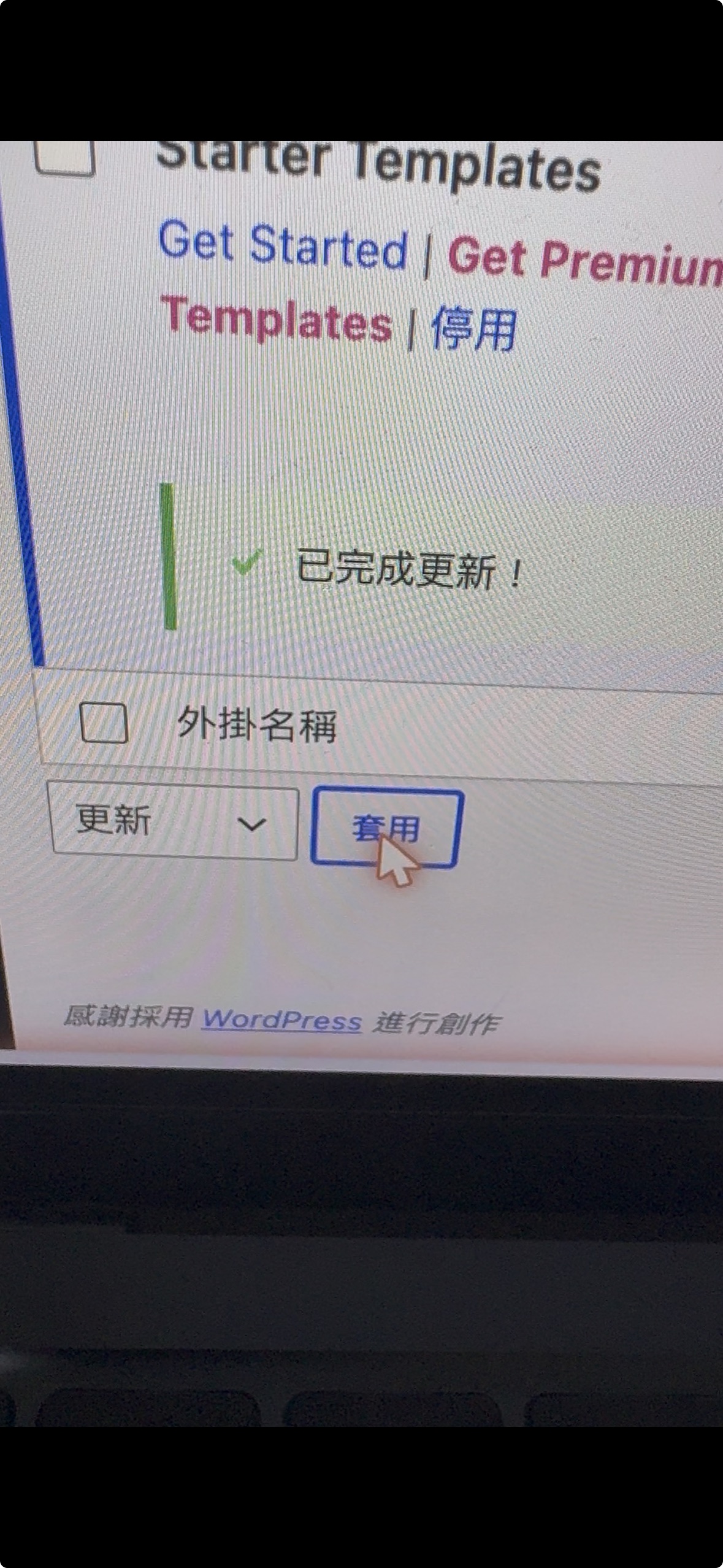
The moment it clicks a button or submits a form, you'll also see a small orange ring around the cursor — that's Claude marking exactly where it just clicked.
Step 5 | A full report when it's done
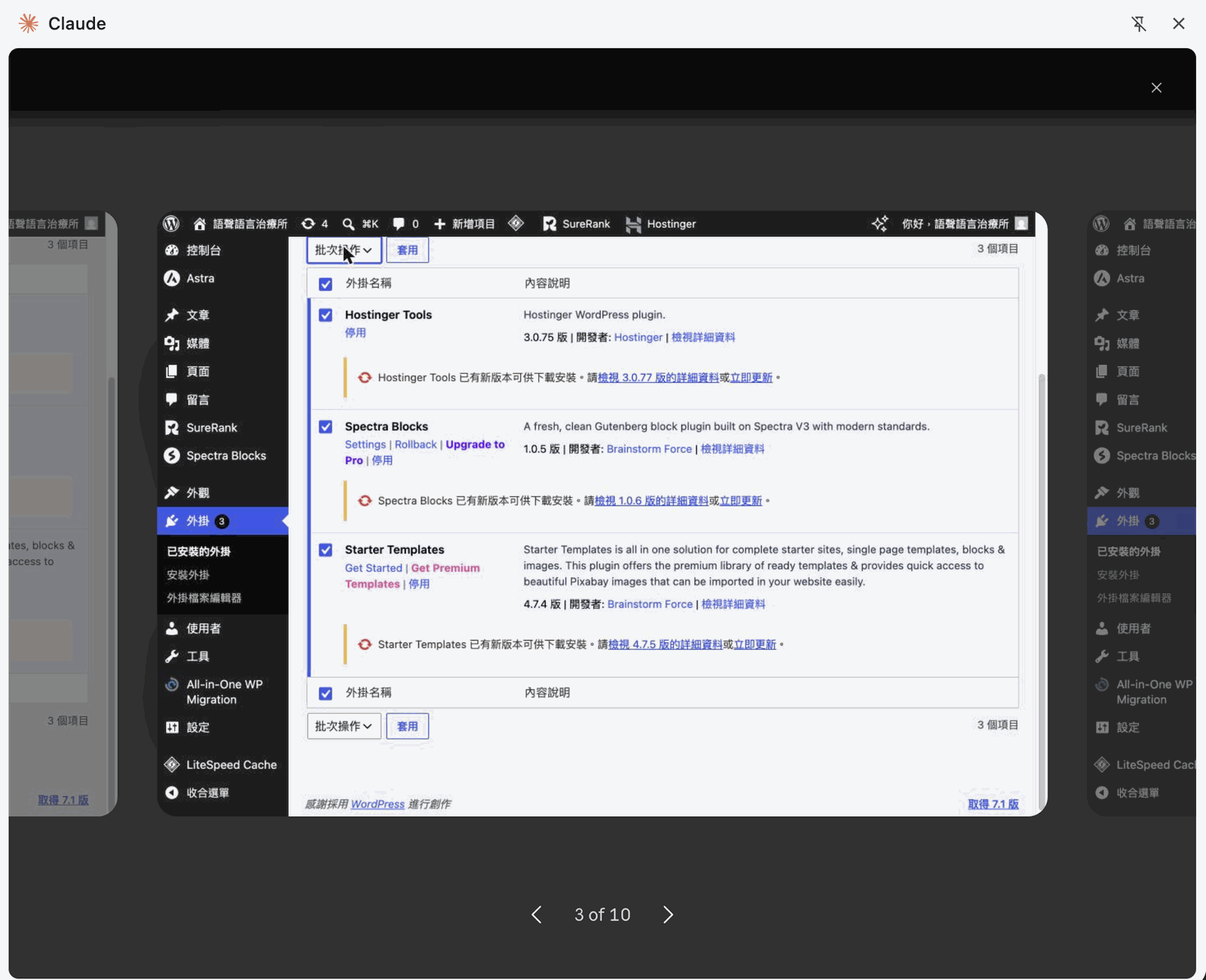
When the task finishes, Claude doesn't just say "done" — it includes the actual screenshots it captured along the way, so you can verify exactly what it touched.
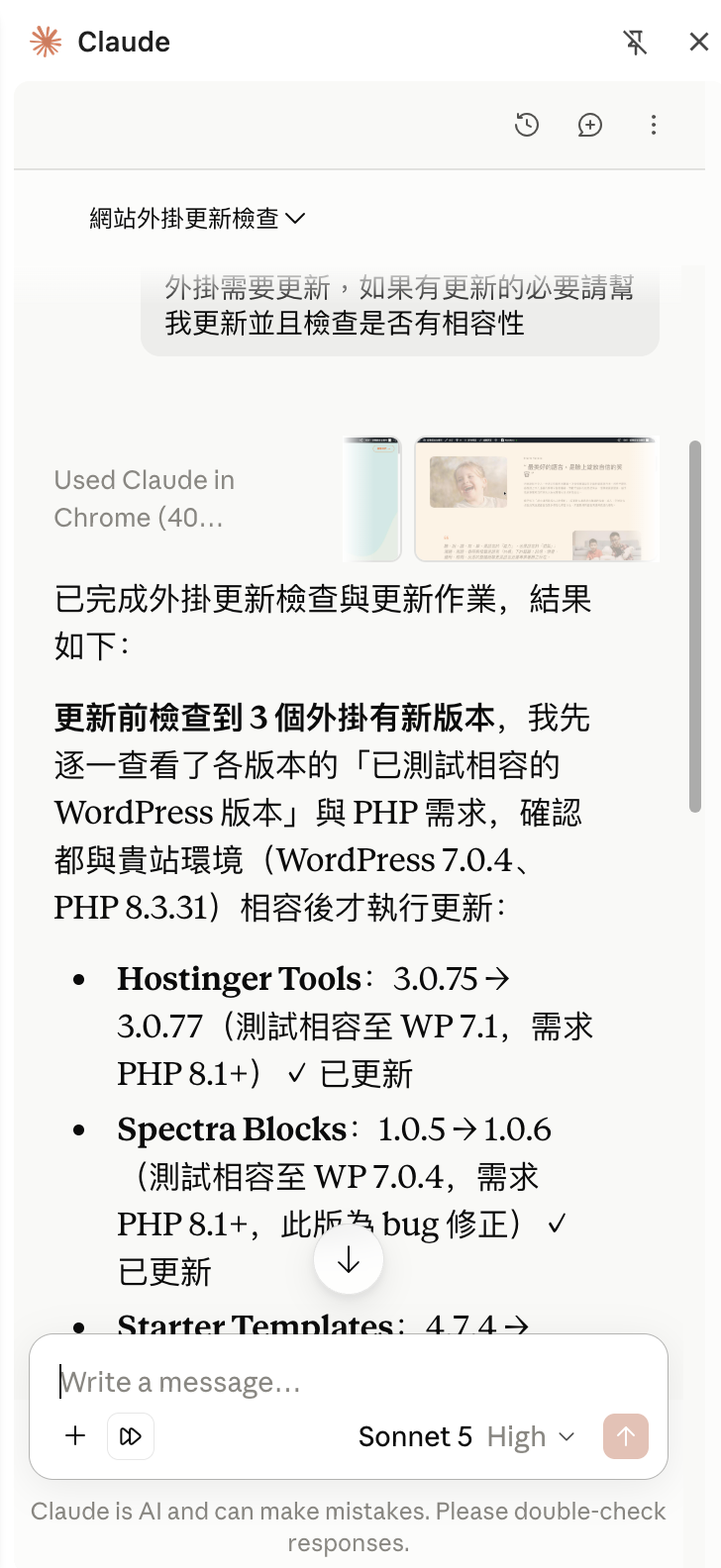
On top of that, you get a written summary laying out exactly what was done at each step and what the outcome was.
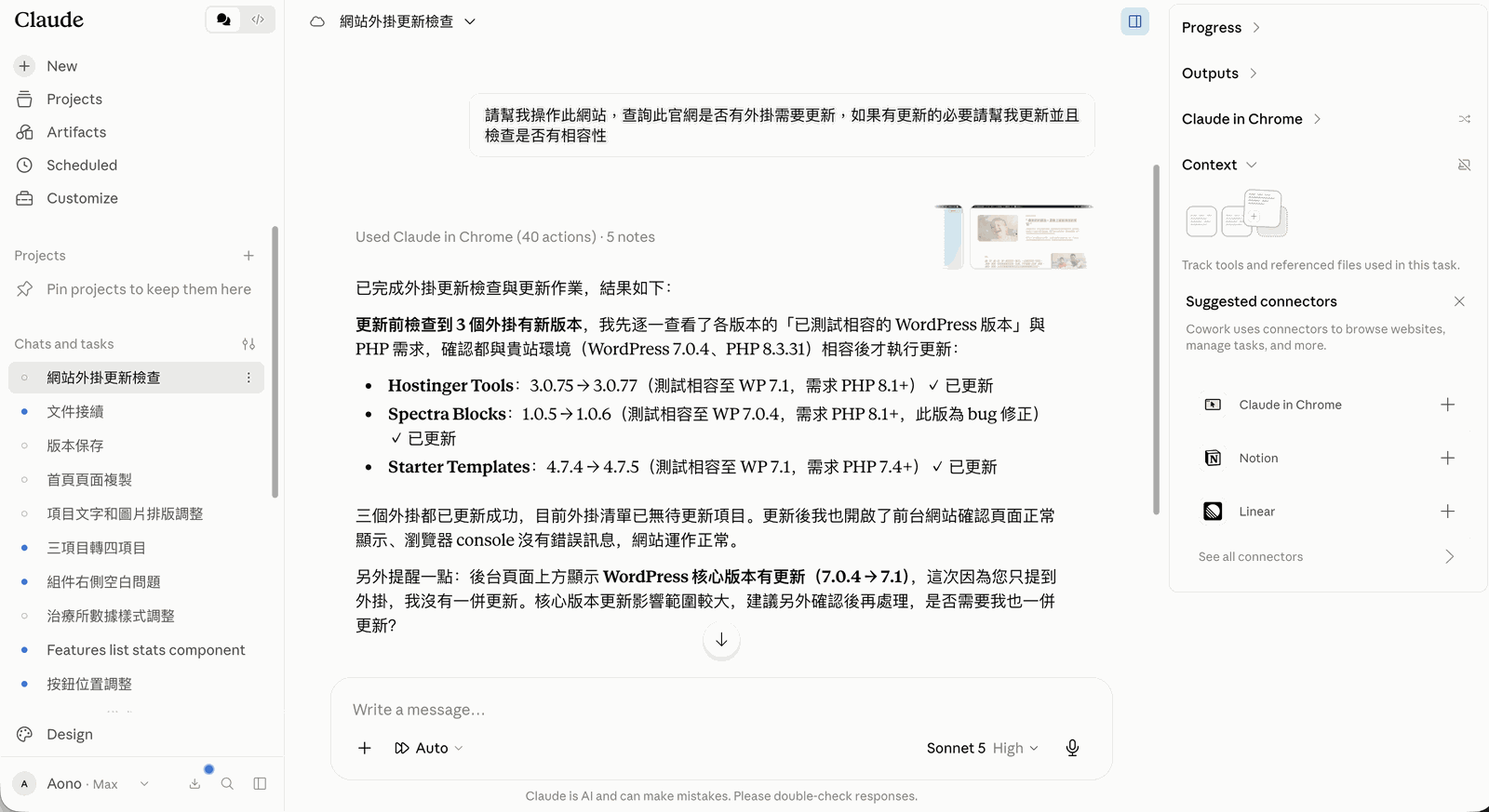
One more thing: your chat history isn't lost — the web app and the extension stay in sync
A common worry is: "If I use the extension to have Claude operate my browser, will I lose that conversation once I go back to claude.ai on the web?" No need to worry — every operation is its own independent Task. Whether you chat with it in the side panel or reopen the same task on claude.ai later, everything stays perfectly in sync, right down to which tools it used and which screenshots it captured.
Bottom line
Claude in Chrome solves a very real problem: even a perfectly accurate AI answer still leaves you to do the clicking yourself — and once an interface changes, outdated AI advice actively works against you. With this tool, AI operates directly on the screen you're actually looking at. What you see is what you get, so you never have to guess where that "settings page" wandered off to after the redesign.
This tool has been out for a while now — if you're a heavy Claude user, it's genuinely worth carving out time to try.