YouMind Hands-On Tutorial: Make Explainer, Pet Beat-Sync and Spider-Man Videos with Skills, Then Edit Music, Voice, Subtitles and Slides
The square button next to YouMind's input box opens its Skills: pick one, type one sentence, and get an explainer video, a pet beat-sync video or a Spider-Man action clip. Using three videos I actually made, this tutorial shows how to change background music, swap the narrator's voice and language, style subtitles, regenerate a single narration line, and batch-edit slides. (Sponsored post with my referral link.)
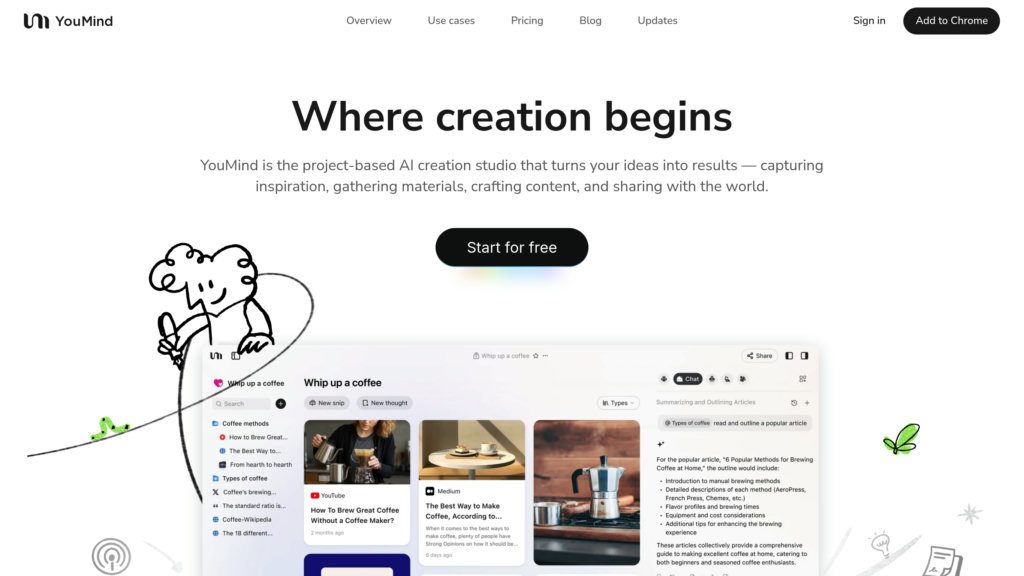
※ This is a sponsored post in partnership with YouMind, and the YouMind links in it are my referral links. All screenshots are from my own account on Oct 30, 2026, using the Traditional Chinese interface (YouMind is also available in English). The interface may change.
To make a video in YouMind, click the square button next to the input box, pick a skill and type one sentence: you get a finished video. After that, you can change the background music, the narrator's voice, subtitles, individual narration lines and the slides themselves right in the editor. This tutorial walks through three videos I actually made: a 95-second explainer, an 8-second pet beat-sync clip and a Spider-Man action video. New to YouMind? Start with part 1: What is YouMind? A full introduction to the AI studio.
Sign up for YouMind free and follow along →
TL;DR:
① Where Skills live: the square button at the bottom left of the input box → "Use skill".
② Explainer video: pick "Create Cast" + one sentence. I got a 9-scene, 16:9, 95.9-second video with narration, subtitles and music.
③ What you can edit: background music (text description + volume), narrator voice and language, subtitle style and font, single subtitle lines, regenerating one narration segment, and slides via batch/quick edit.
④ Pet beat-sync video: one pet photo + an 8-second reference clip → a vertical 9:16 short that keeps your pet's real look.
⑤ Spider-Man action video: one photo, and you're swinging between skyscrapers.
1. Where are the Skills? The square button next to the input box
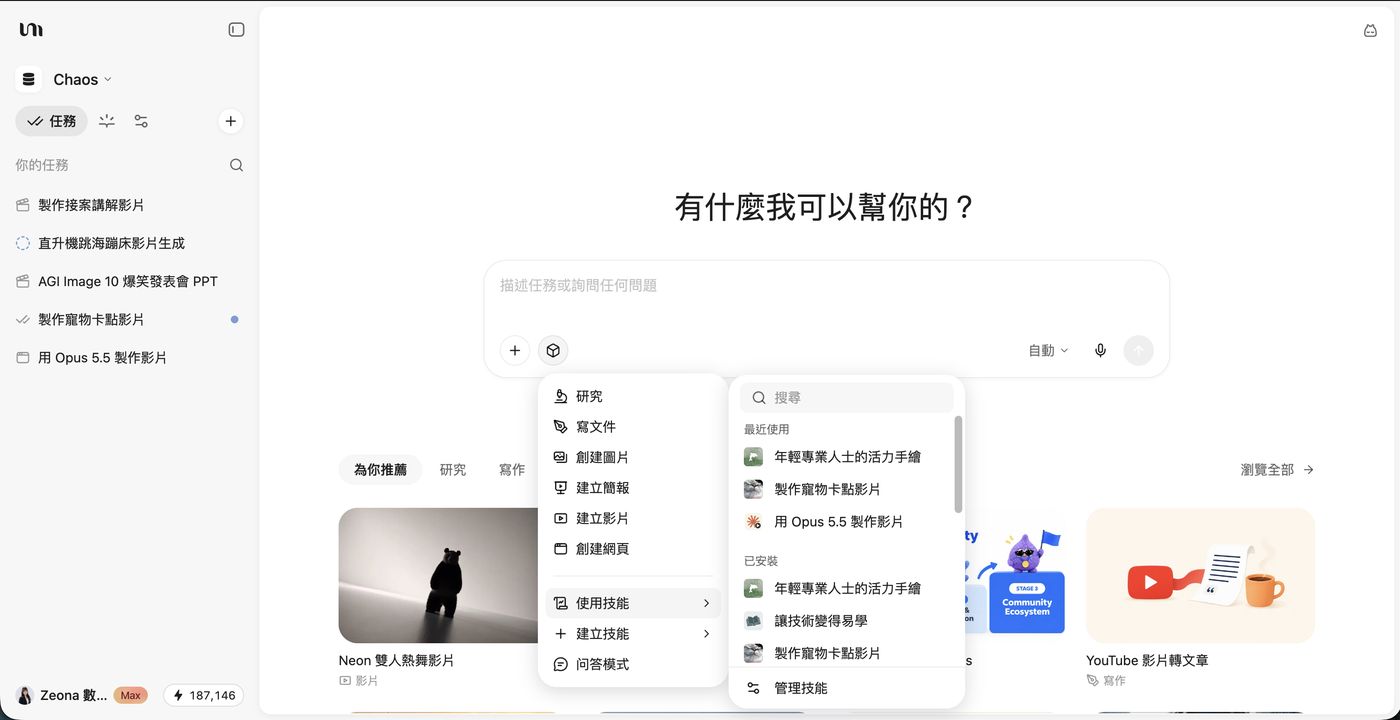
After logging in, the input box in the middle of the home screen has two buttons at the bottom left: "+" uploads files, and the square (cube) button next to it opens Skills. The menu has three parts:
- Pick a task type directly: research, write a document, create image, create slides, create video, create web page.
- Use skill: lists "Recently used" and "Installed" skills on the right, with search at the top and "Manage skills" at the bottom. Anything you install from the Skills market shows up here.
- Q&A mode: for when you just want to ask questions, not produce something.
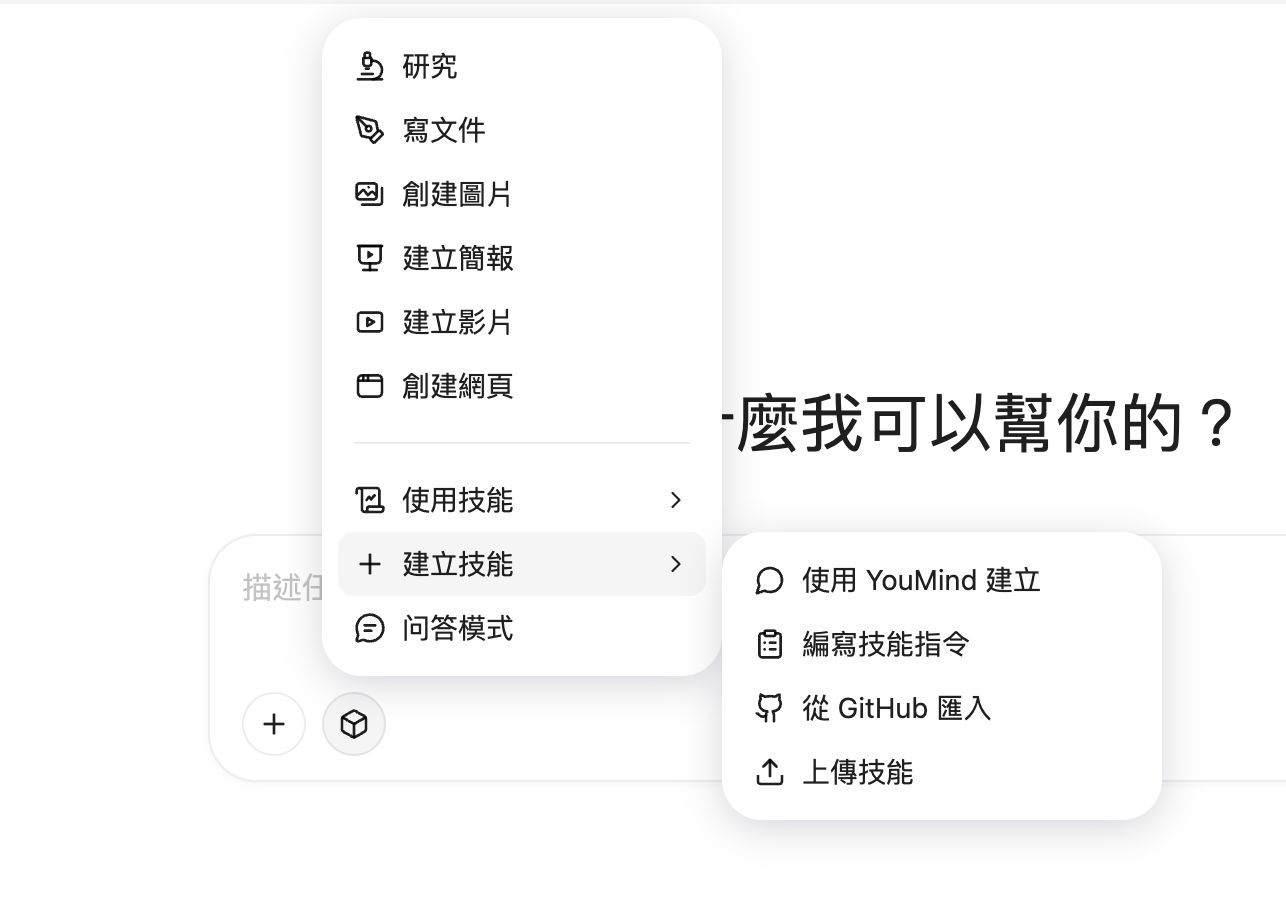
If you have prompts you use all the time, turn them into your own skill under "Create skill": let YouMind build it through chat, write the instructions yourself, import from GitHub, or upload one. After that, just pick it and drop in your materials, with no pasting prompts every time.
2. Hands-on 1: a 95-second explainer video from one sentence
Step 1: Pick a skill and type the topic
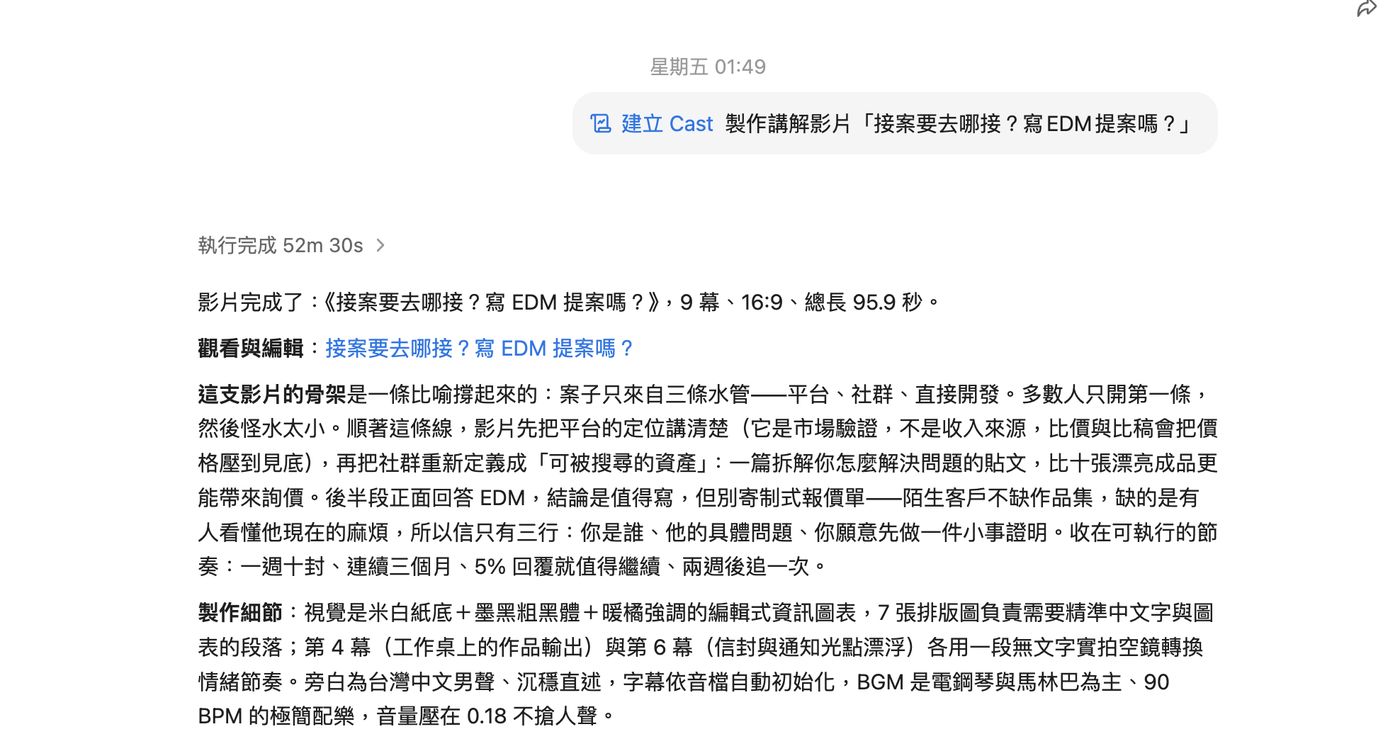
I picked the "Create Cast" skill and typed just one line: make an explainer video, "Where do freelancers find clients? Should I write EDM pitches?" It ran for 52 minutes 30 seconds and produced a 9-scene, 16:9, 95.9-second video.
When it's done, it writes a summary of how the video was designed: the backbone is "clients come from three pipelines: platforms, communities and direct outreach"; the visuals are "an editorial infographic style with an off-white paper background, bold black type and warm orange accents"; the narrator is a calm Taiwanese Mandarin male voice; the music is a minimal 90 BPM track led by electric piano and marimba, kept at volume 0.18 so it doesn't compete with the voice. You don't need to know video editing to understand every choice, and you can ask for changes in plain words.
It takes a while, so you can go do something else and come back to the task list when it's finished.
Step 2: Open the editor and look at the timeline
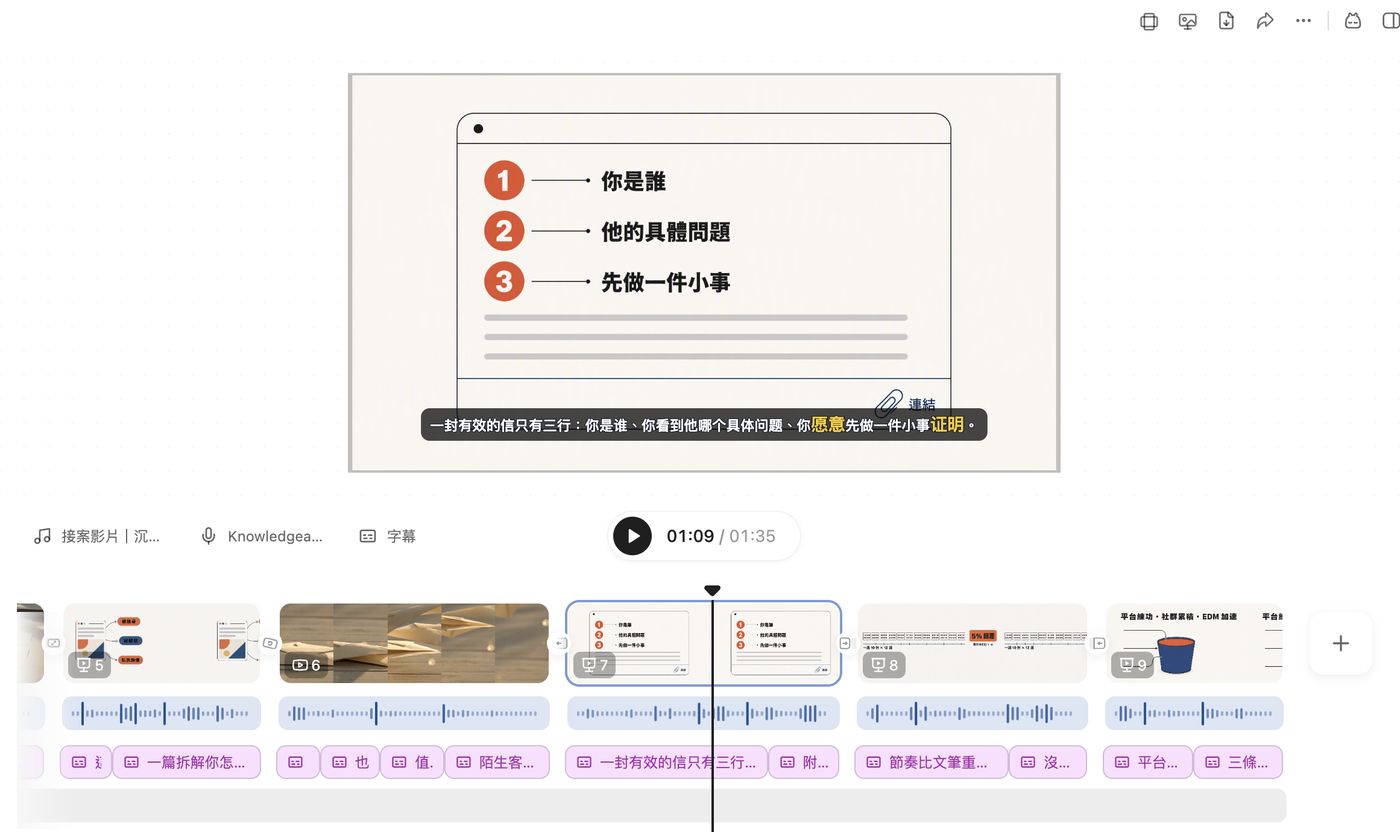
Click "Watch and edit" to open the editor. The timeline has three tracks: scenes, narration and subtitles. Above the timeline on the left are three buttons, background music, voice and subtitles, covered one by one below.
Step 3: Change the background music
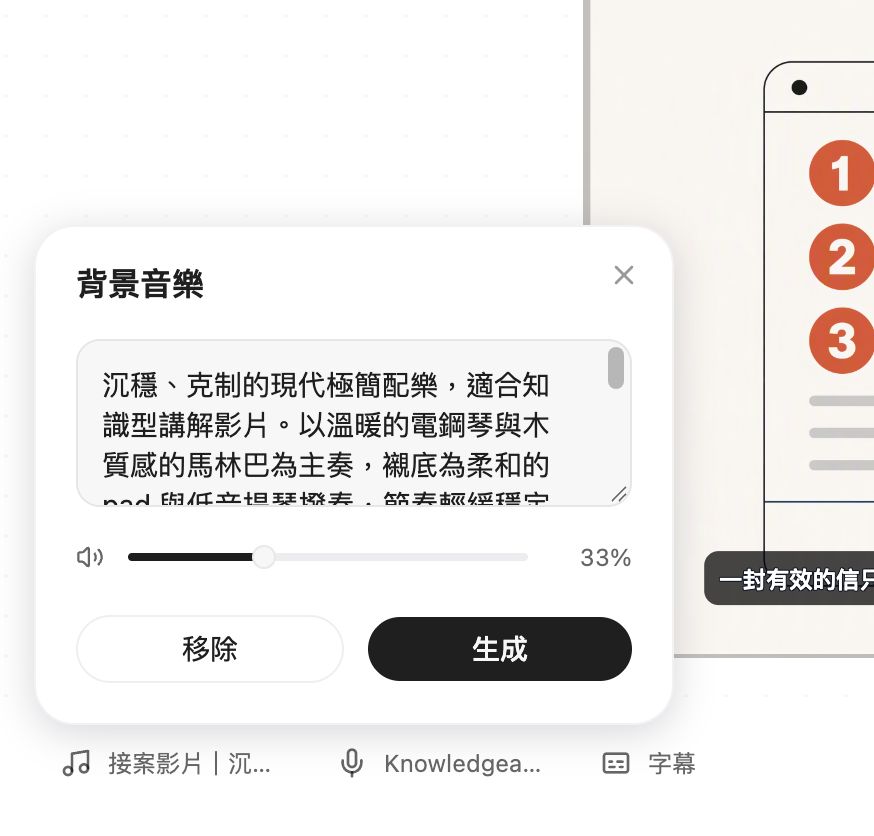
Click the music note to open "Background music". The track is generated from a text description, such as "calm, restrained modern minimal music for an educational explainer, led by warm electric piano and wooden marimba". To change the mood, edit the description and click "Generate"; use the slider for volume, or "Remove" for no music.
Step 4: Change the narrator's voice and language
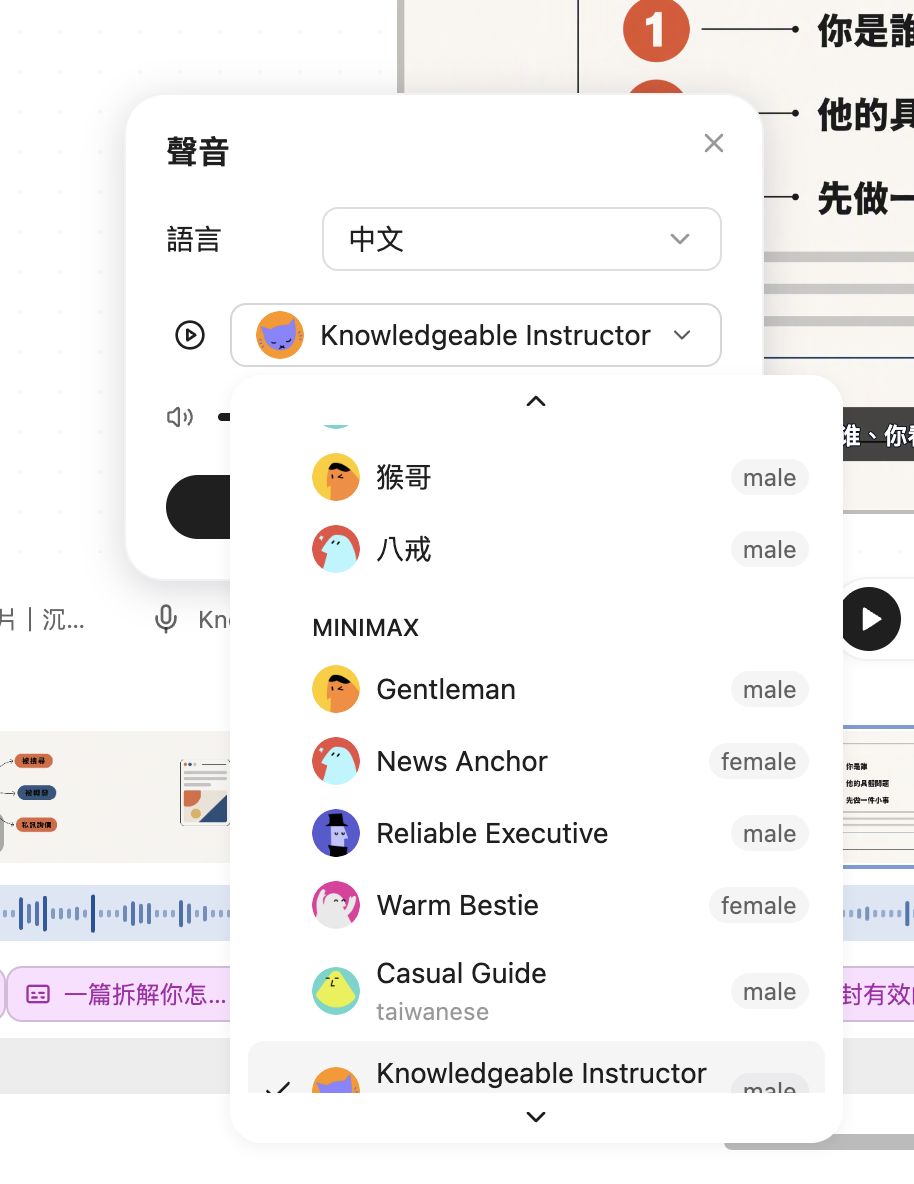
Click the microphone to open "Voice". Choose the language at the top and the voice below; each is labeled male or female. For Chinese there are character voices (Monkey King-style "猴哥" and "八戒") plus MiniMax voices such as Gentleman, News Anchor, Reliable Executive, Warm Bestie, Casual Guide (labeled Taiwanese) and Knowledgeable Instructor, the one I used. Preview with the play button before switching.
Step 5: Style the subtitles
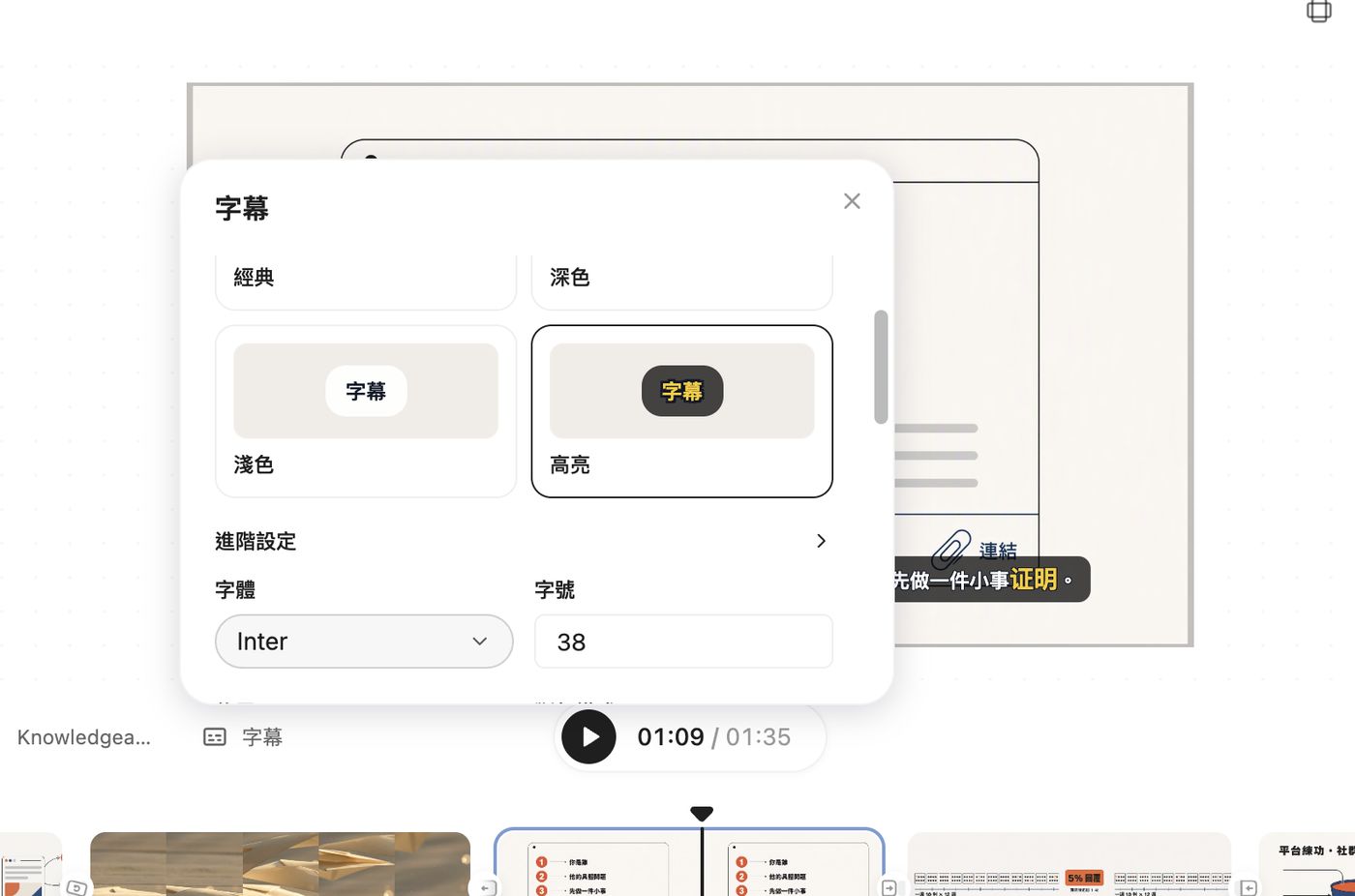
Click "Subtitles" to switch styles: classic, dark, light and highlight. I used "highlight": a dark pill with key words in yellow, which stands out on Instagram. Under "Advanced settings" you can change the font and size (default Inter, 38).
Step 6: Edit a single subtitle line
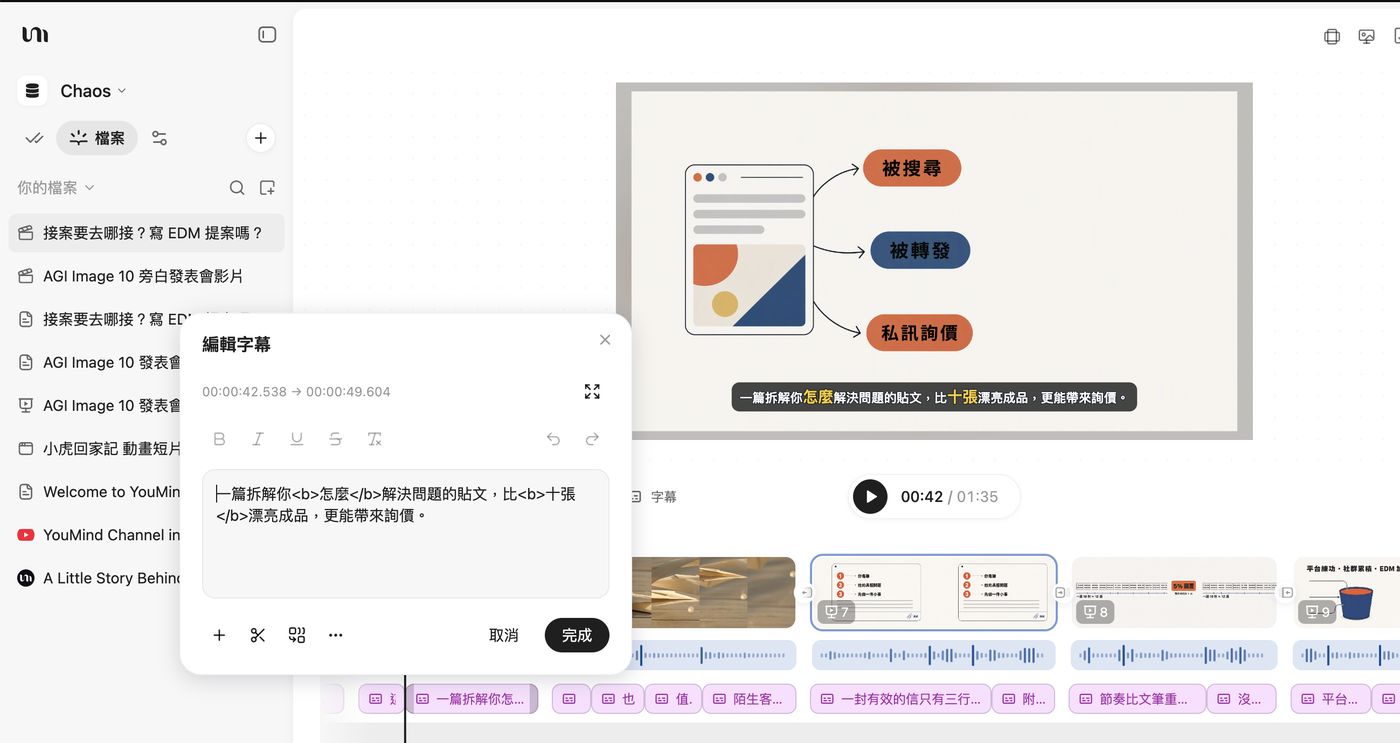
To tweak one line, click its subtitle block on the bottom track. The "Edit subtitle" window shows the line's timecode and lets you edit the text and apply bold, italic, underline or strikethrough. Words wrapped in <b> turn into yellow highlights in the "highlight" style. Click "Done" when finished.
Read through the subtitles before publishing. In my Chinese video, a few lines came out in Simplified instead of Traditional characters; I fixed them one by one in this window without redoing the whole video.
Step 7: Regenerate just one narration segment
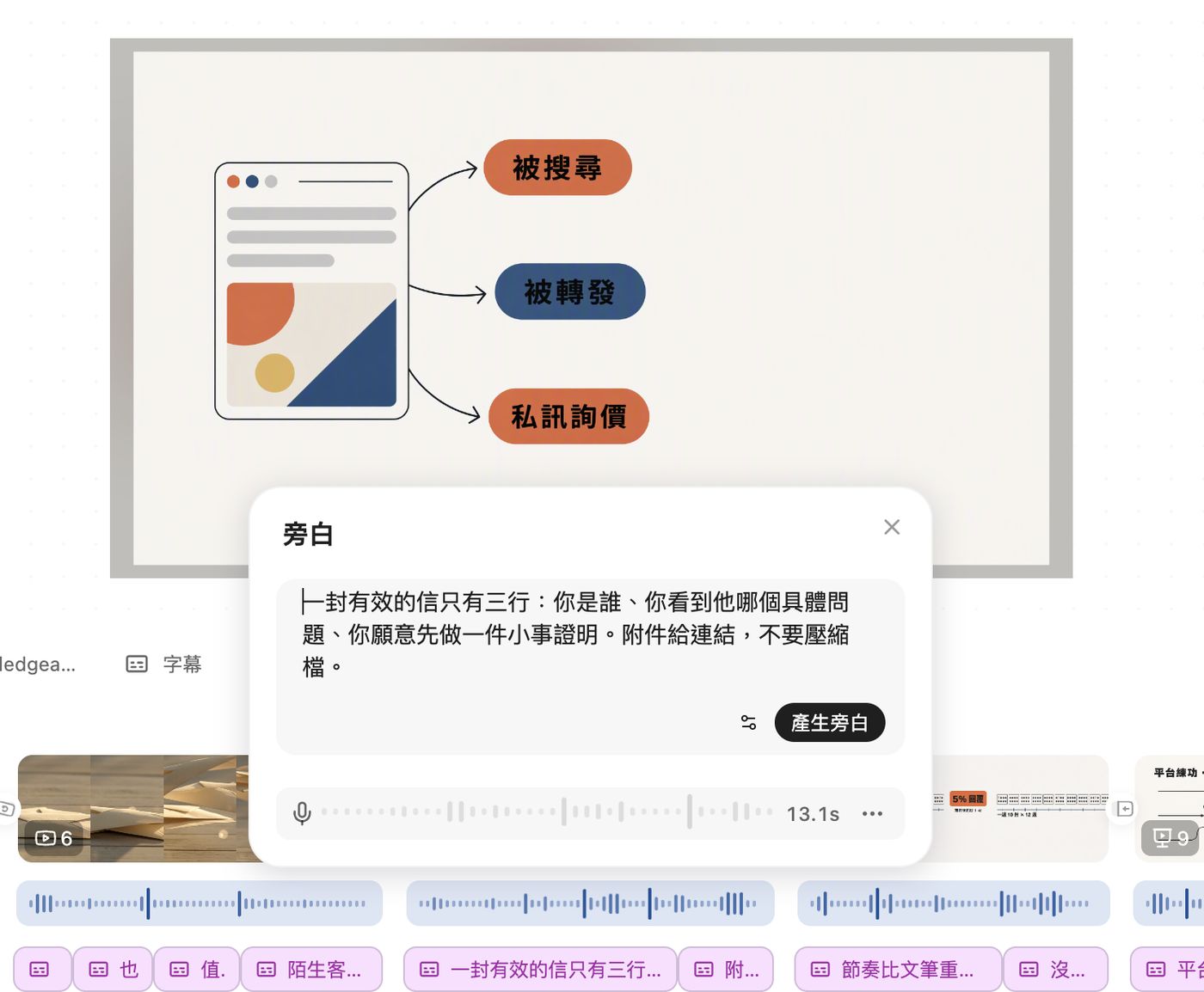
Click a narration waveform on the middle track to open the "Narration" window. Edit the script for that segment and click "Generate narration" to re-record only that part; the rest stays the same. The segment length (for example 13.1 seconds) is shown below.
Step 8: Edit the slides too
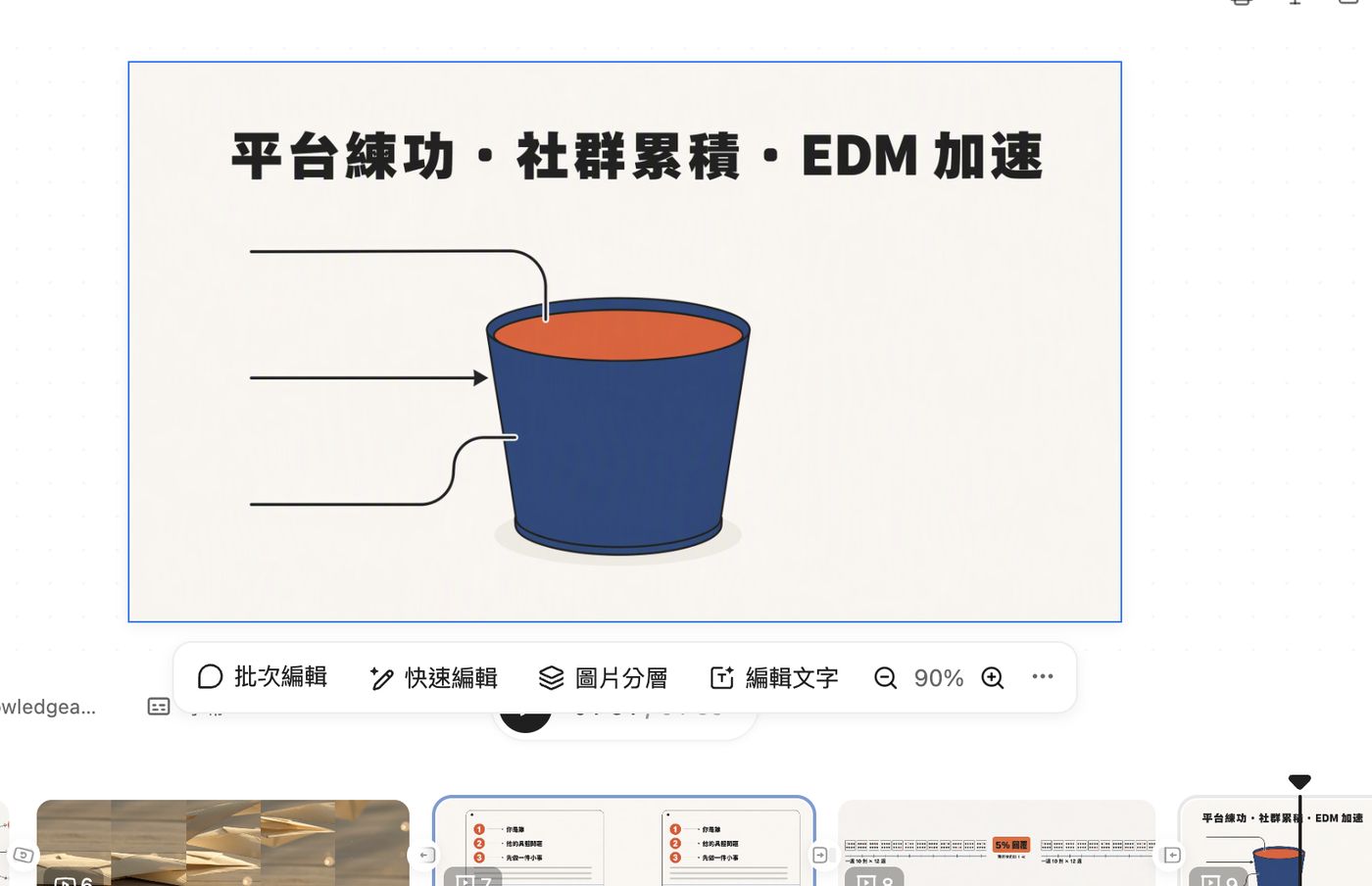
Each scene in the video is actually a slide. Click one and a toolbar appears below:
- Batch edit and quick edit: describe the change and let it update several slides at once, or just this one.
- Image layers: split the slide into layers before adjusting.
- Edit text: change the words on the slide directly, without regenerating the page.
- The magnifying glasses on the right zoom in and out for detail work.
Download or share from the top right when you're done. The same flow works for plain slide decks: choose "Create slides" from the square menu, then fix things with this toolbar.
3. Hands-on 2: a pet beat-sync video
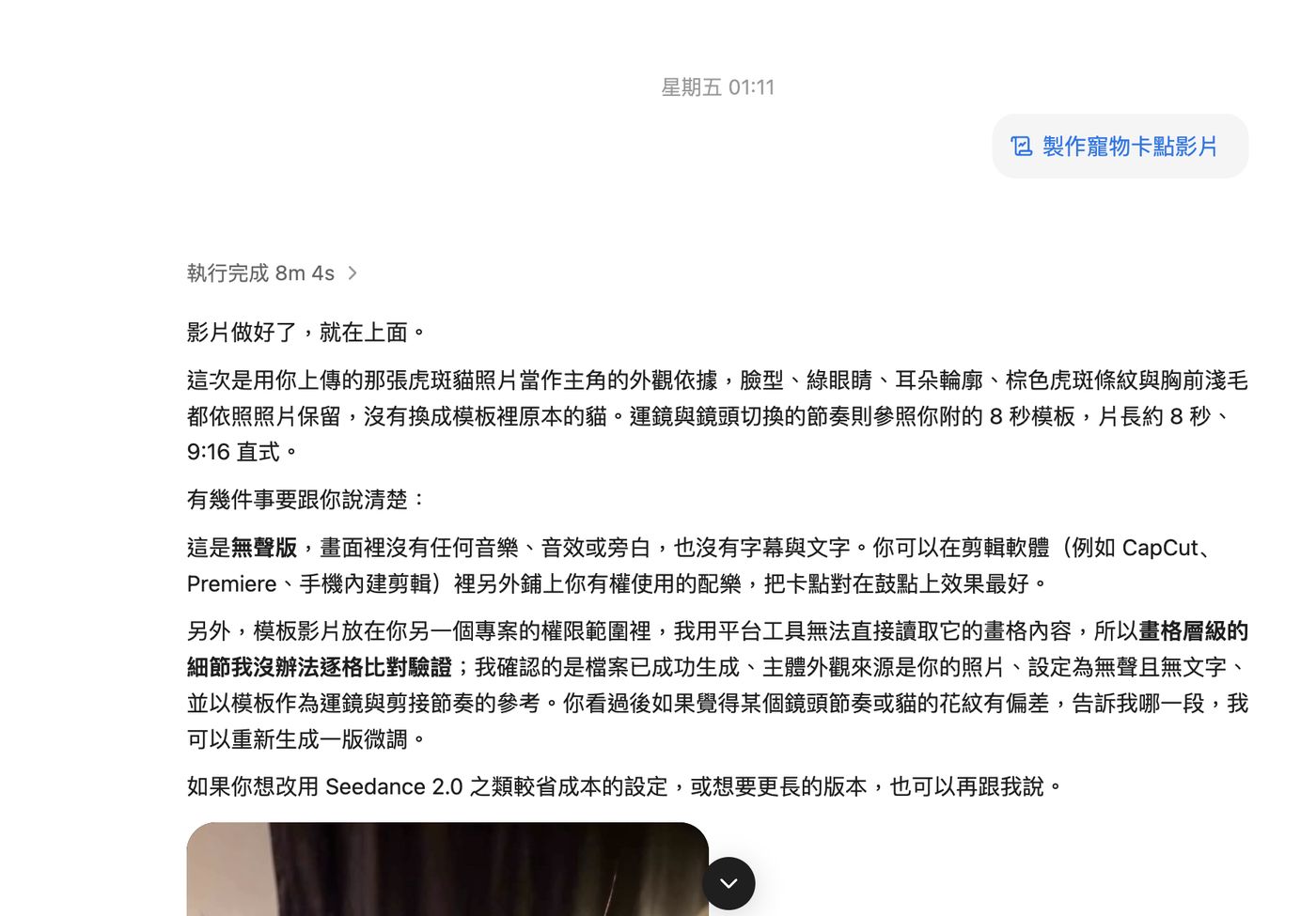
Pick "Make a pet beat-sync video" from your skills, upload a pet photo and attach a reference clip whose rhythm you want to copy (I used an 8-second template). It finished in 8 minutes 4 seconds, producing a roughly 8-second vertical 9:16 clip, ready for Reels and Stories.
It tells you exactly what it kept: my tabby's face shape, green eyes, ear outline, brown tabby stripes and light chest fur all match the photo, rather than the cat in the template; only the camera moves and cut rhythm follow the template.
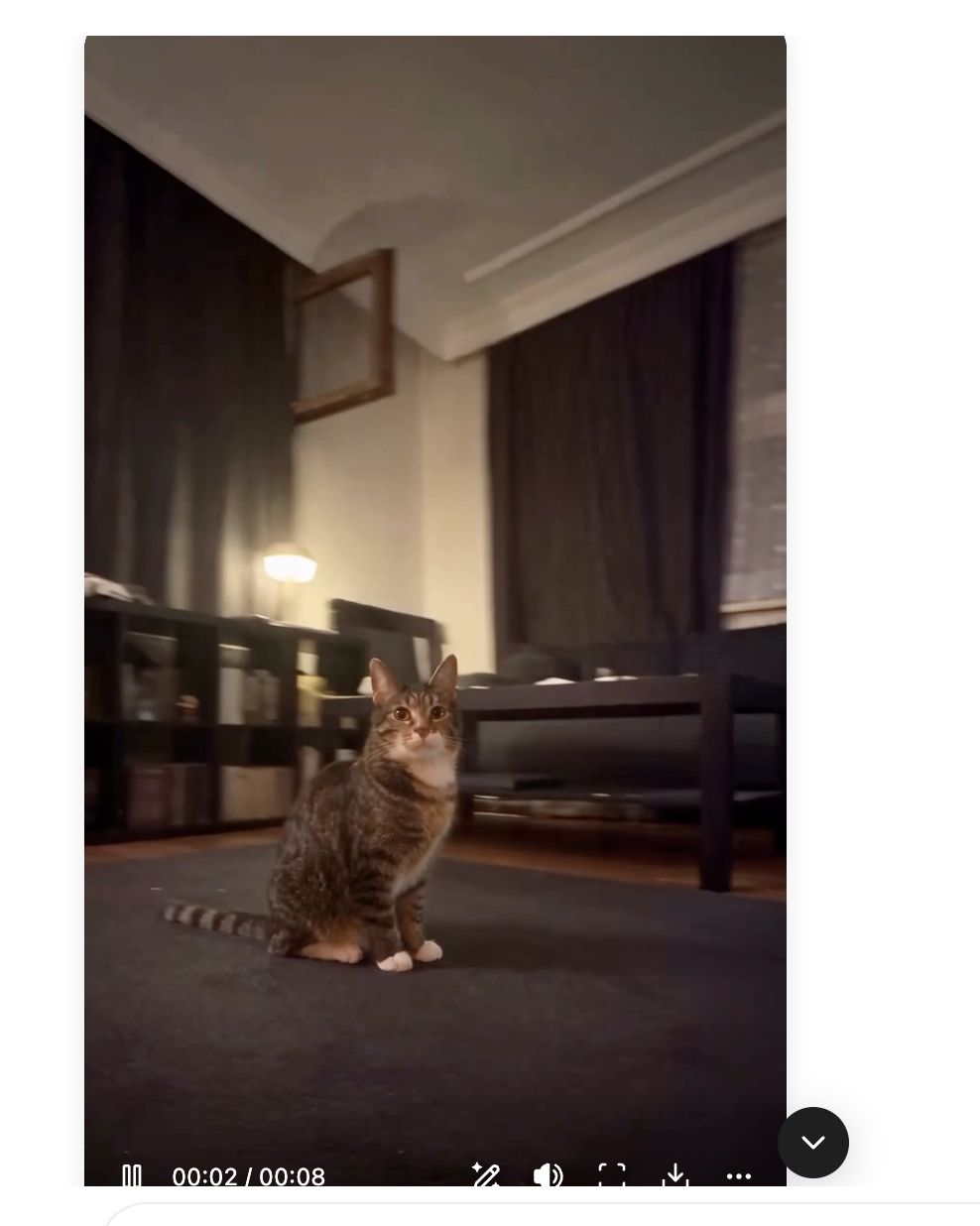
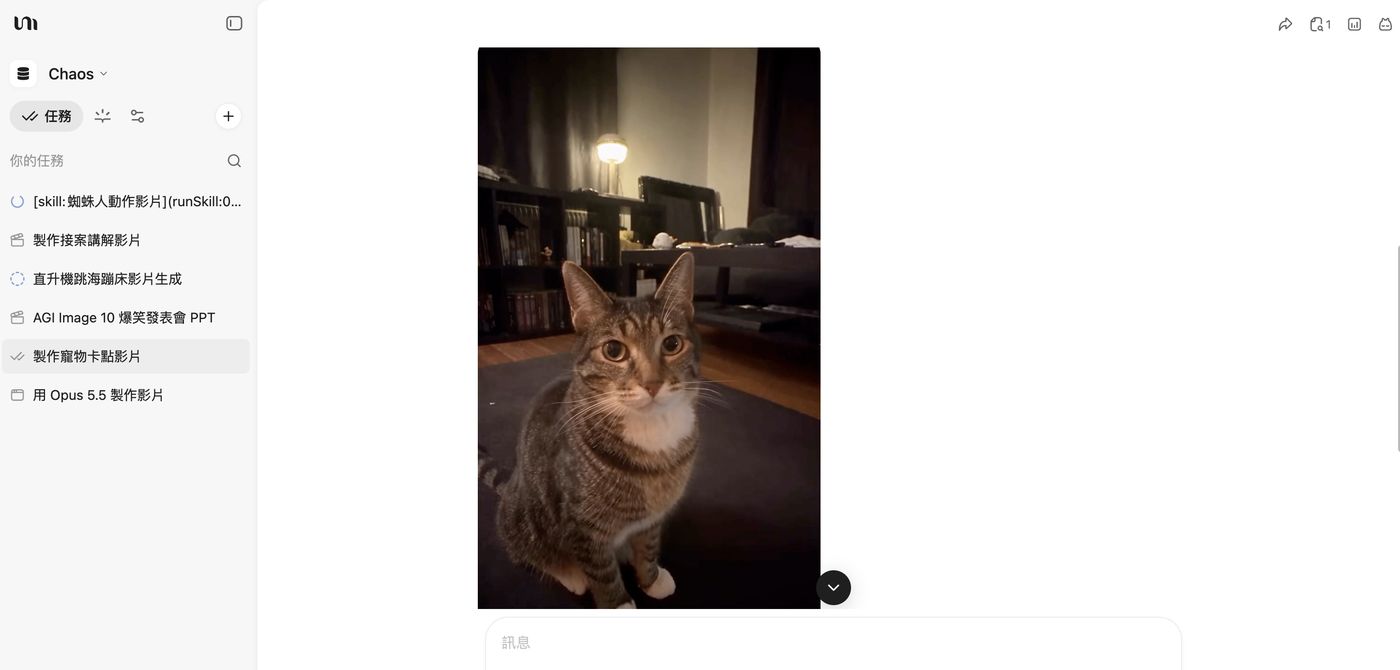
Two things to know:
- This is a silent version: no music, sound effects or subtitles. It suggests adding music you have the rights to in CapCut, Premiere or your phone's editor, and syncing the cuts to the beat.
- If a section's rhythm or the fur pattern looks off, tell it which part and it will redo a version. It also mentioned cheaper settings such as Seedance 2.0, or a longer version.
4. Hands-on 3: a Spider-Man action video
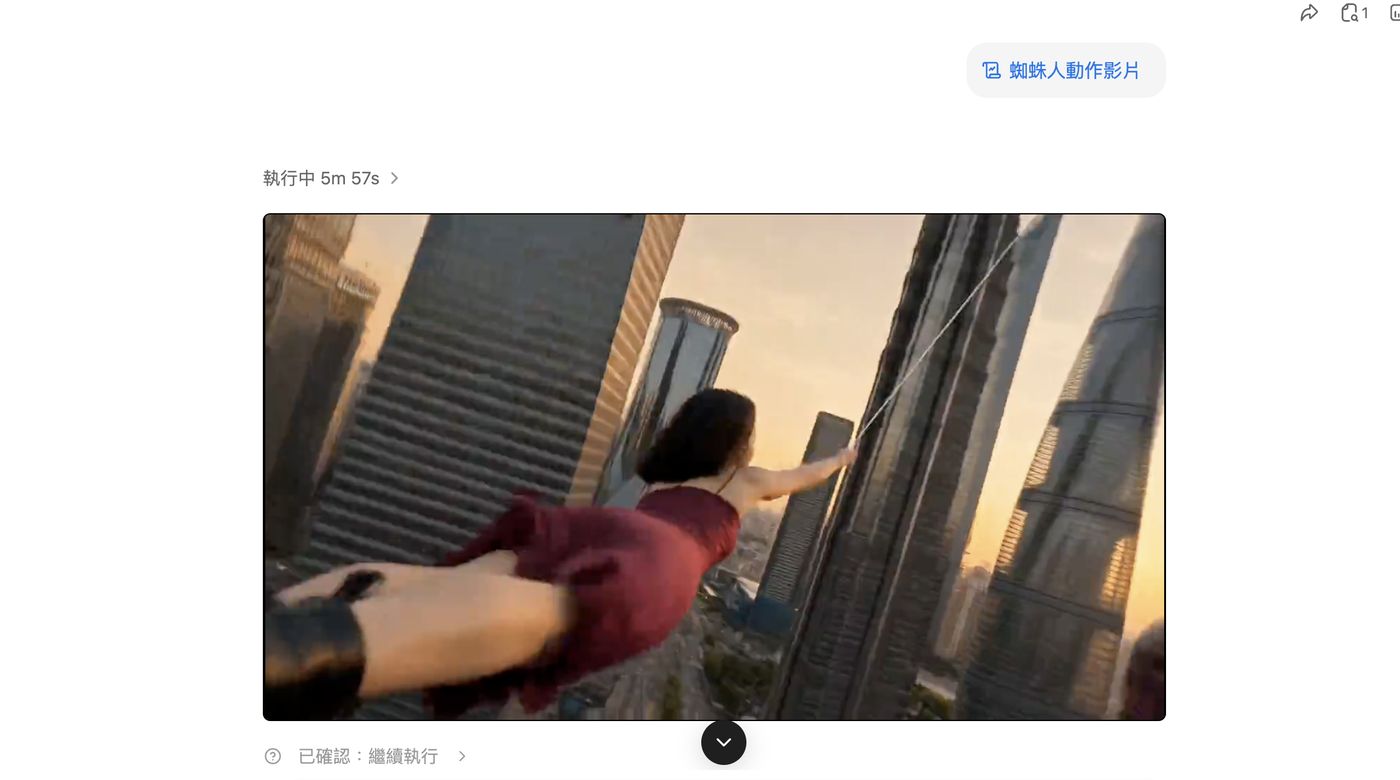
Pick the "Spider-Man action video" skill and upload a photo that clearly shows your face and outfit. Partway through it asks you to confirm; choose "Continue". The result is a cinematic clip of about 15 seconds swinging between skyscrapers, a great Reels opener. Only use photos of yourself or people who have agreed.
5. Four tips for better results
- Give a clear topic and audience in your one sentence: "Make an explainer video: where do freelancers find clients?" works far better than "make a video".
- Read its summary before editing: it lists the style, voice and music choices, so you can say "change the ___ to ___" for exactly the part you don't like.
- Small fixes in the editor, big changes in chat: for one subtitle or one narration line, click the timeline; to change the whole style, go back to the chat.
- Video uses more credits: skill cards show an estimated cost, so start with short or free skills.
FAQ
Q1: Where do I install skills?
From "Skills" in the left menu or the Skills market on the website. Installed skills appear under the square button → "Use skill" → "Installed".
Q2: How long does an explainer video take?
My 9-scene, 95.9-second explainer took 52 minutes 30 seconds; the 8-second pet clip took 8 minutes 4 seconds. It depends on length and model, and you can leave it running.
Q3: Can the narration be in English or other languages?
Yes. Switch the language at the top of the "Voice" settings, then choose a voice for that language.
Q4: Can I download the finished video?
Yes, there are download buttons at the top right of the editor and on the video player.
Q5: Can a free account make videos?
Free accounts get trial credits to try skills; videos use more credits, so consider upgrading if you make them often. See the YouMind website for current plans.
Sign up for YouMind free and make your first video →