What Is YouMind? One AI Studio for Writing, Slides, Images, Video and Web Pages: Features, Skills and a Free Prompt Library
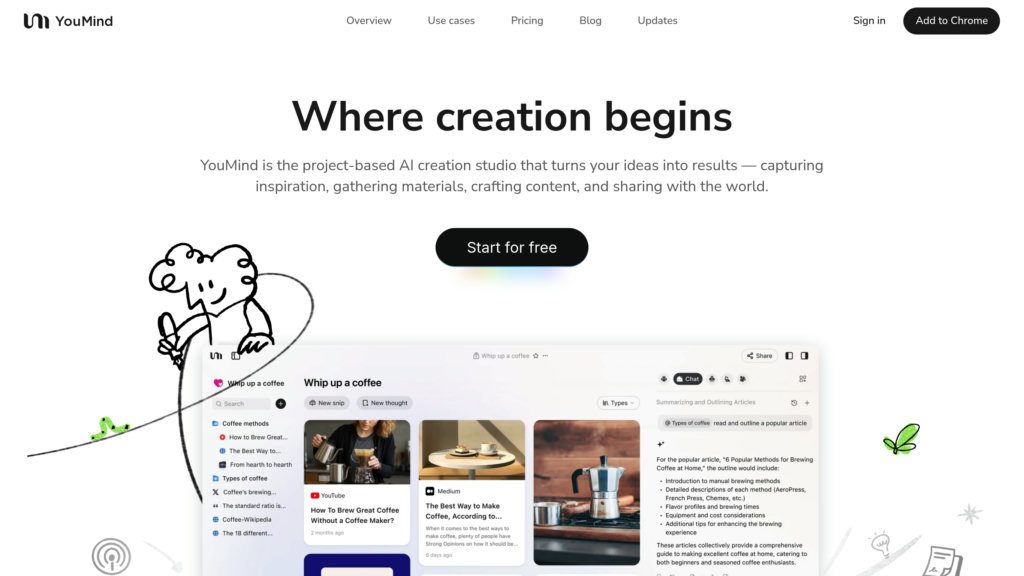
YouMind is an AI studio that puts research, writing, slides, images, video and web pages in one workspace, with Claude, GPT, Gemini and more built in. This guide walks through the writing studio, slides, the Skills market, a 30,000+ free prompt library, projects and scheduled tasks. (Sponsored post with my referral link.)
※ This is a sponsored post in partnership with YouMind, and the YouMind links in it are my referral links. Features and screens are based on the official site and screenshots from my own account as of Oct 30, 2026. The screenshots show the Traditional Chinese interface; YouMind is also available in English. The interface may change, so please check the official site for the latest.
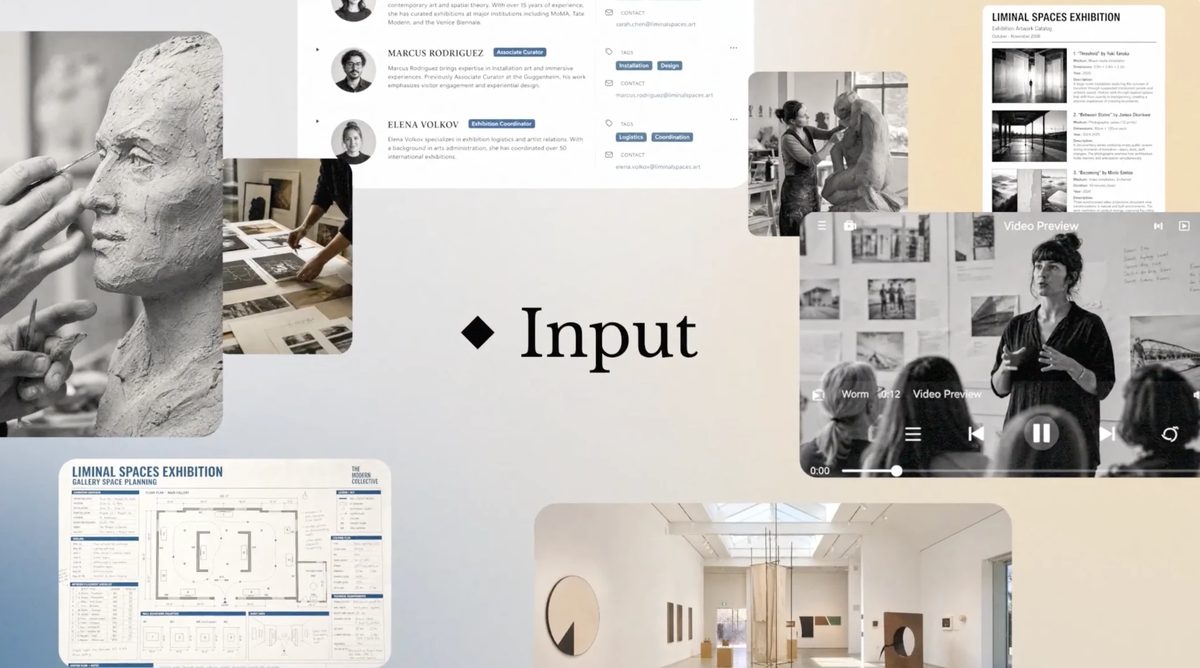
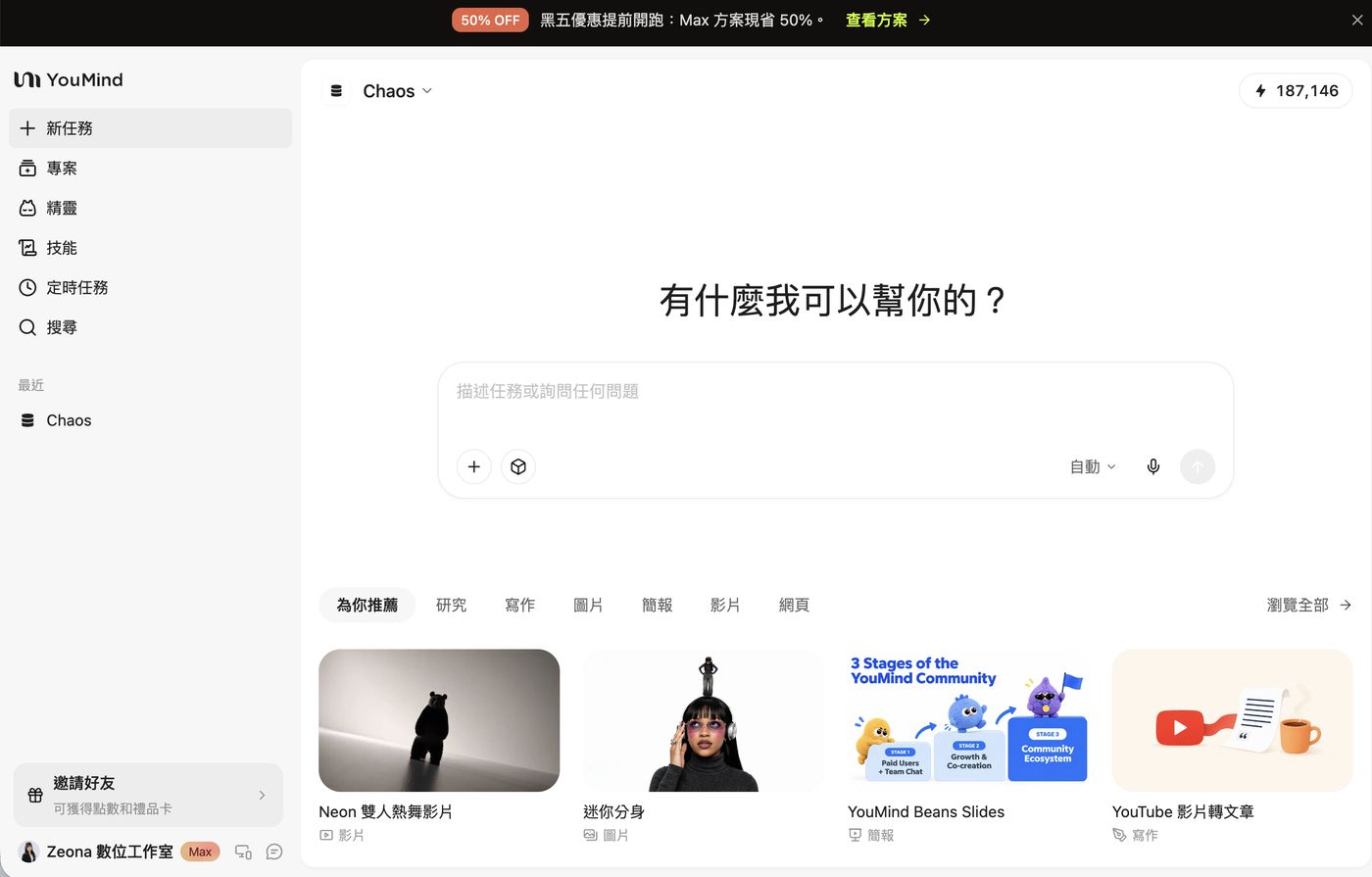
YouMind is an AI studio: put PDFs, web pages, YouTube videos and notes into one project, and it helps you research, write articles, build slides, generate images, make videos and even build web pages. These jobs used to mean bouncing between ChatGPT, Canva, a video editor and a slide app. In YouMind it is one chat box and one set of materials. It also has Claude, GPT, Gemini, Grok and other models built in, plus a free prompt library with 30,000+ prompts.
TL;DR:
① In one sentence: drop your materials in and get articles, slides, images, videos and web pages out, without switching tools.
② Biggest time-savers: PDF + web pages + notes → client pitch deck; YouTube link → blog post.
③ Skills: ready-made workflows you apply in one click, such as "one phone photo of a product → white-background listing image + lifestyle shot" or "one photo → a 15-second Spider-Man-style action video".
④ Prompt library: 30,000+ image, video and web prompts, updated daily and 100% free. Find one you like and generate it right inside YouMind.
⑤ Who it's for: freelancers, social media managers, teachers, personal brands, anyone who keeps turning materials into finished work.
⑥ Keep in mind: images, videos and slides use credits; exported PPTX files are one image per slide, so edit the text back in YouMind.
1. What is YouMind? An AI studio where learning and making happen in one place
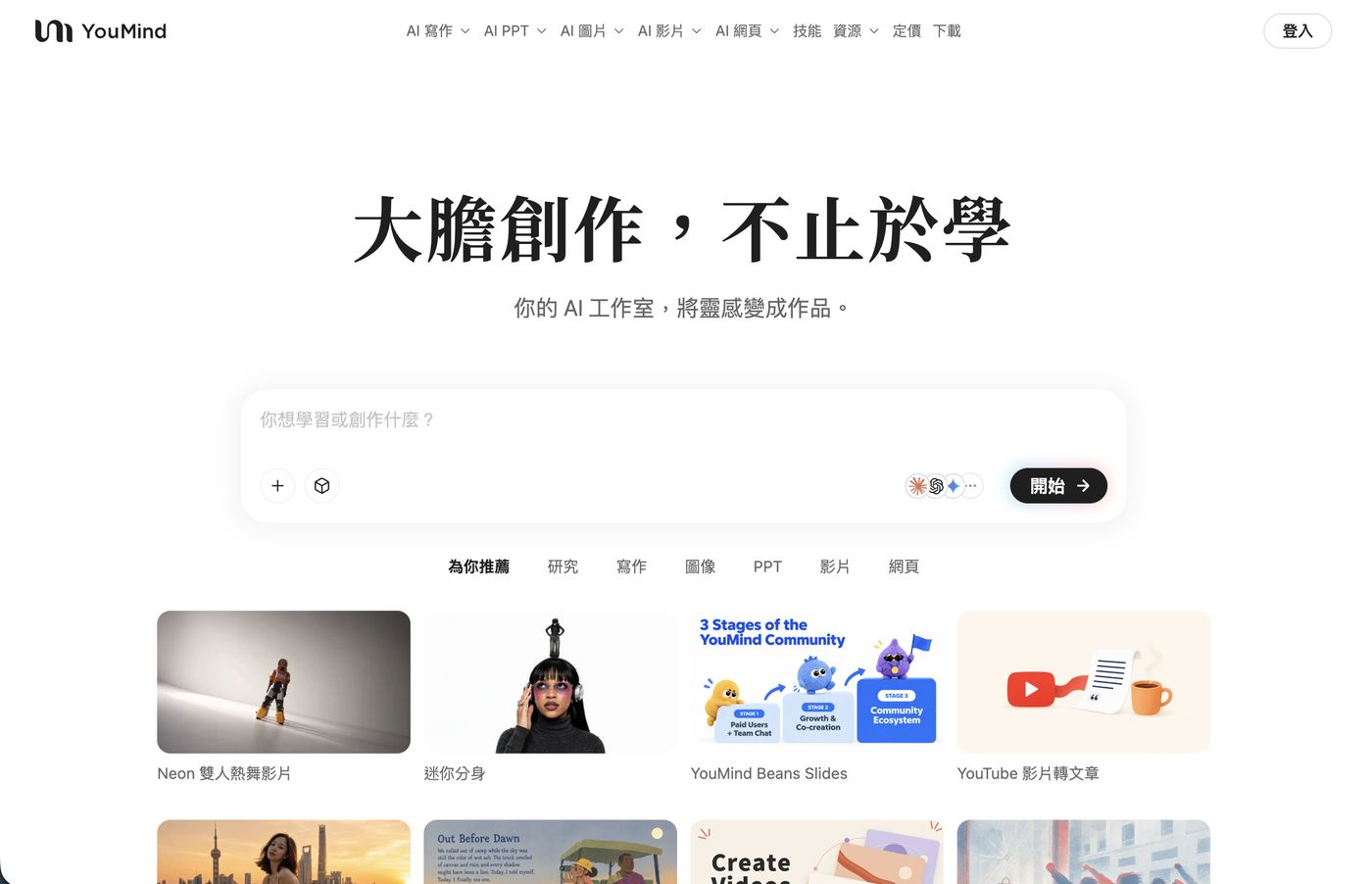
YouMind's tagline (from its Traditional Chinese site) translates to "Create boldly, beyond learning — your AI studio that turns inspiration into work." It splits the process into three steps: collect your inspiration → form your insights → create your work. In the site's words, it turns what you learn "into articles, PPTs, images, videos and web pages".
The biggest difference from a regular AI chatbot: your materials stay in the project. The PDFs, web pages and YouTube videos you add today are still there next week when you write an article, build slides or make a video. You don't have to paste them again every time you open a new chat.
- Multiple models built in: the site's menu lists Claude Opus 5.5, GPT-6.1 Terra, Gemini 4 Argon, Grok 4.7 and DeepSeek-V4.1-Flash, with GPT Image 2 / 2.5 for images and Seedance 2.0 / 2.5 for video. Pick one in the corner of the input box, or leave it on "Auto".
- Use it anywhere: web, iOS, Android, a macOS desktop app (Apple silicon, currently beta), and a Chrome extension for saving pages while you browse. The Windows desktop app is listed as "coming soon".
- Company: the site footer reads MIND MOTOR PTE. LTD.
2. AI writing: research and write side by side in the Writing Studio
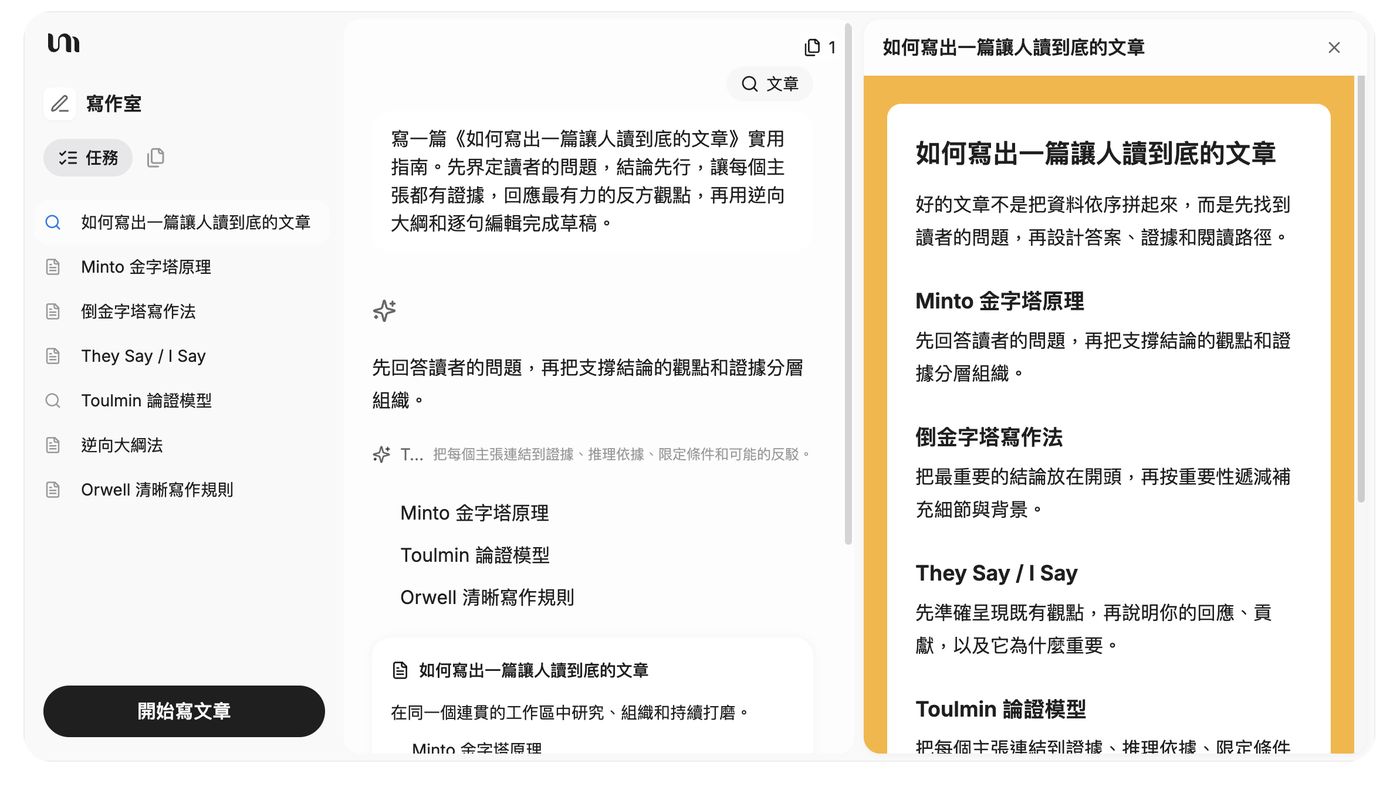
In this example it was asked to write "How to Write an Article People Read to the End". Instead of spitting out a draft, it first breaks the topic into things to research (the Minto Pyramid Principle, the inverted pyramid, They Say / I Say, the Toulmin model of argument, Orwell's rules for clear writing), then works each one into the article on the right. You can see what it looked up and what each point is based on, and you can point to any paragraph you want changed.
Another big time-saver is the official "YouTube Video to Article" skill: paste a YouTube link and it writes up the video's ideas and context as an article, keeps the best quotes, and can add images when it's done. If you run a blog, newsletter or long-form social posts, it skips the whole transcribe-and-organize step.
3. AI slides: turn PDFs, web pages and notes into a client pitch deck
When I made my YouMind partnership video, a pitch deck is exactly what I built. Add the report PDFs, reference pages and your own notes to a project, tell it who the audience is and what decision you want them to make, and it drafts an outline first, then generates the full deck and applies a visual style.
YouMind's official blog has a thorough real-world example: "How to turn PDFs, web pages and notes into a client deck with YouMind" (in Traditional Chinese). Here's the workflow:
- Answer three questions first: What decision does the audience need to make? What claim are we defending? What's off-limits?
- Pick sources: keep the ones with real content (the example used the Microsoft 2026 Work Trend Index PDF and an Anthropic web report) and drop any page it couldn't read.
- Review the outline before generating: one claim per slide, eight slides max for a ten-minute talk.
- Generate a draft → revise: fill in placeholder text and trace key numbers back to their sources.
- Choose a style: generate a version with a few different slide skills and keep the one that fits the audience best.
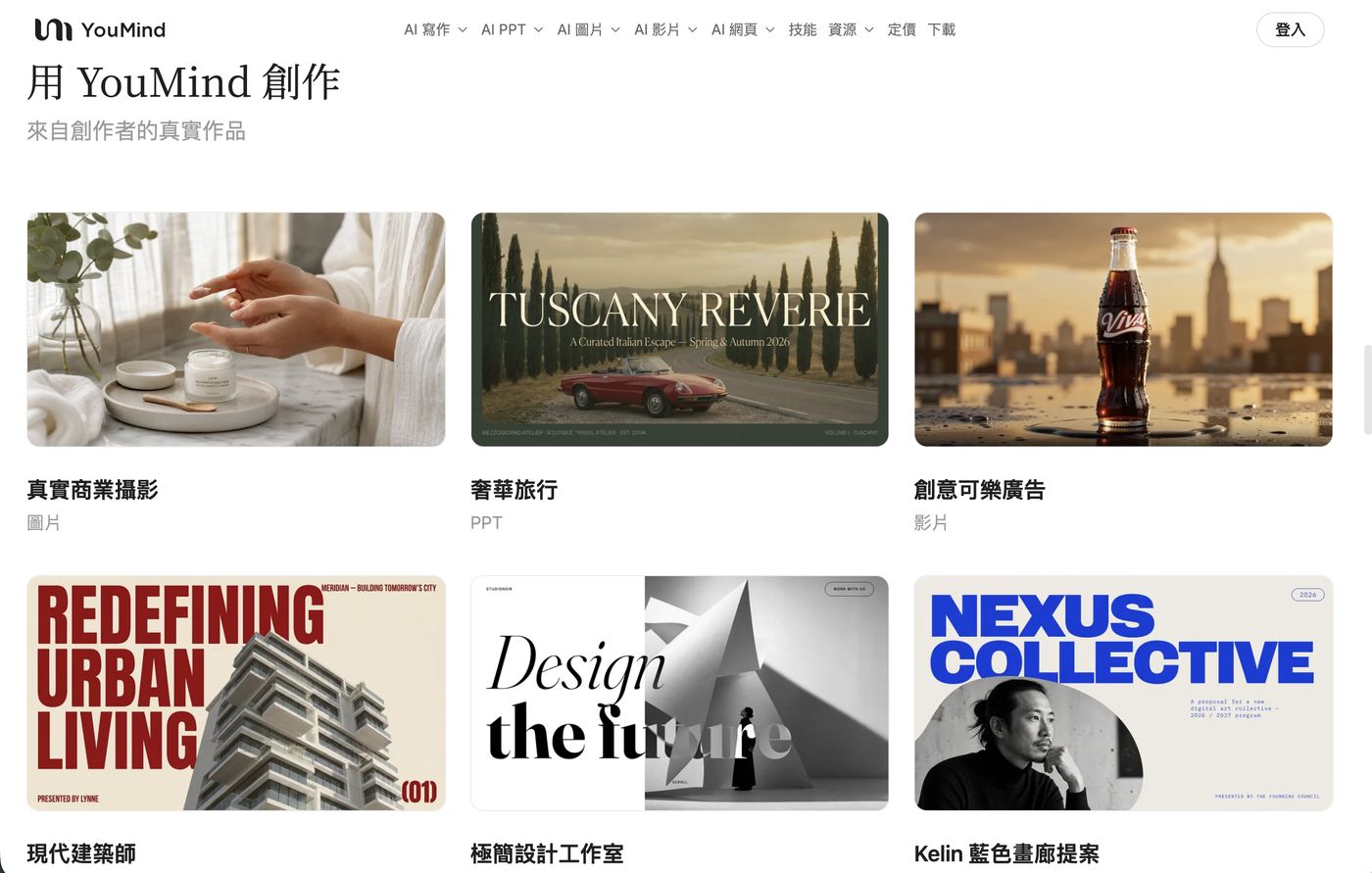
Once the deck is done, you can ask it to turn the same content into a narrated explainer video or an Instagram carousel caption. Everything is in the same project, so you don't have to explain the background again.
4. Skills: ready-made workflows in one click
Skills are the most fun part of YouMind. Think of them as full prompt workflows someone else has already written and tested; you just upload a photo or paste a link. Skills come in six categories (research, writing, image, PPT, video, web), and each card shows whether it's free and its estimated credit cost.
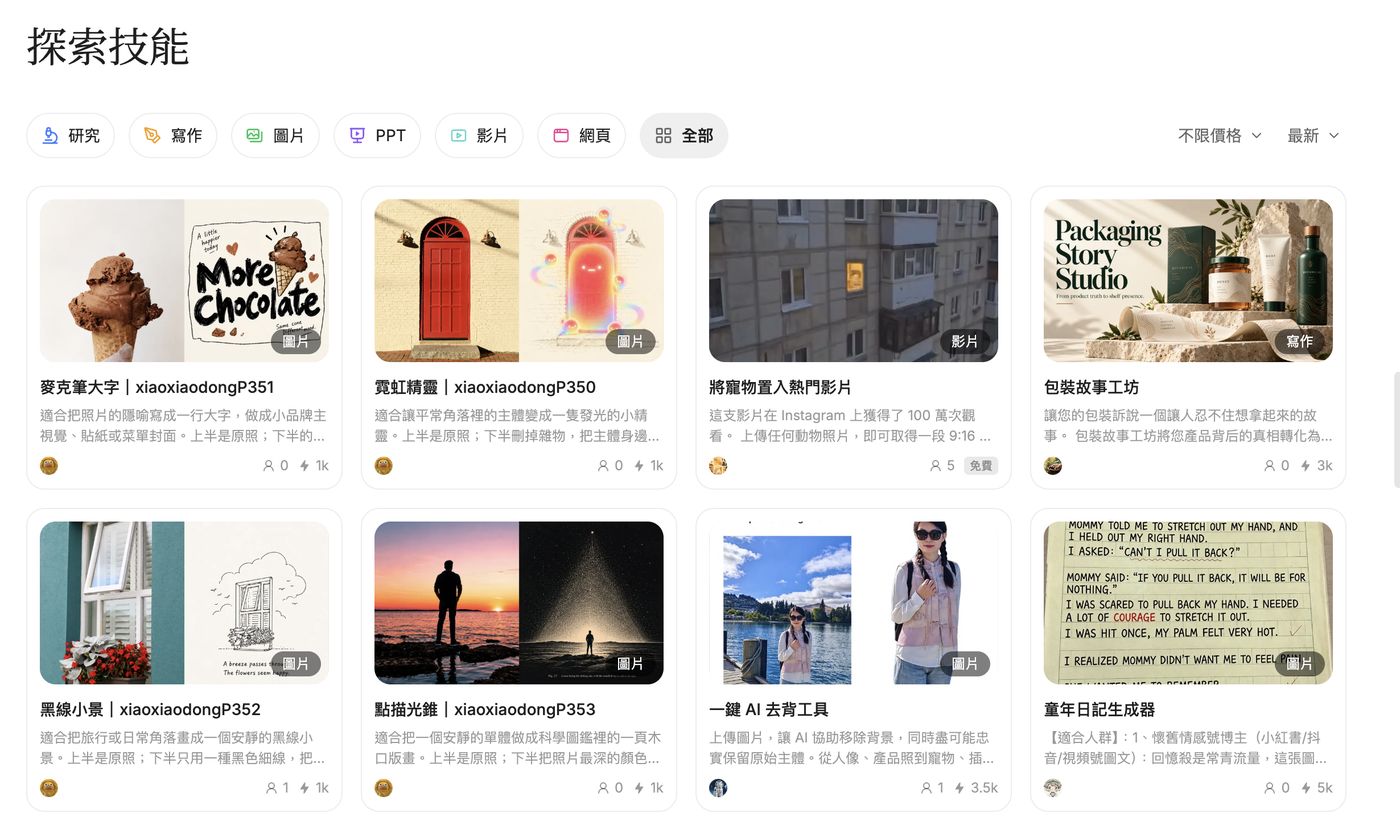
Two useful ones, up close:
1. Product Photo Studio: one phone photo, instant listing image + lifestyle shot
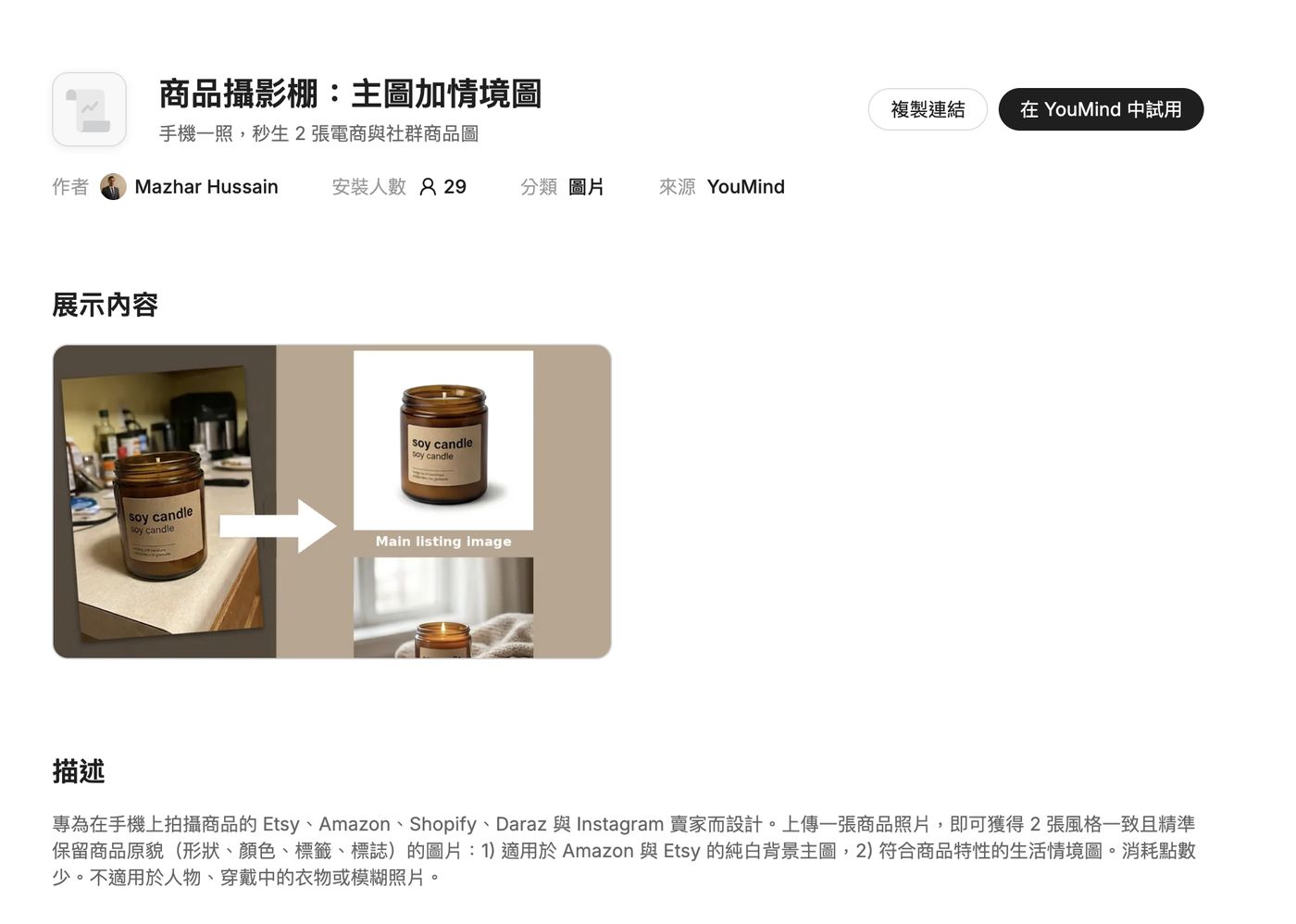
Built for Etsy, Amazon, Shopify and Instagram sellers. Upload one product photo and get two images in a consistent style that keep the product as it is (shape, color, label, logo): a pure white-background main image and a lifestyle scene. The description says it uses few credits, but it doesn't work for people, clothing being worn, or blurry photos. Great for small online shops and personal brands.
2. Spider-Man Action Video: one photo, and you're the movie hero
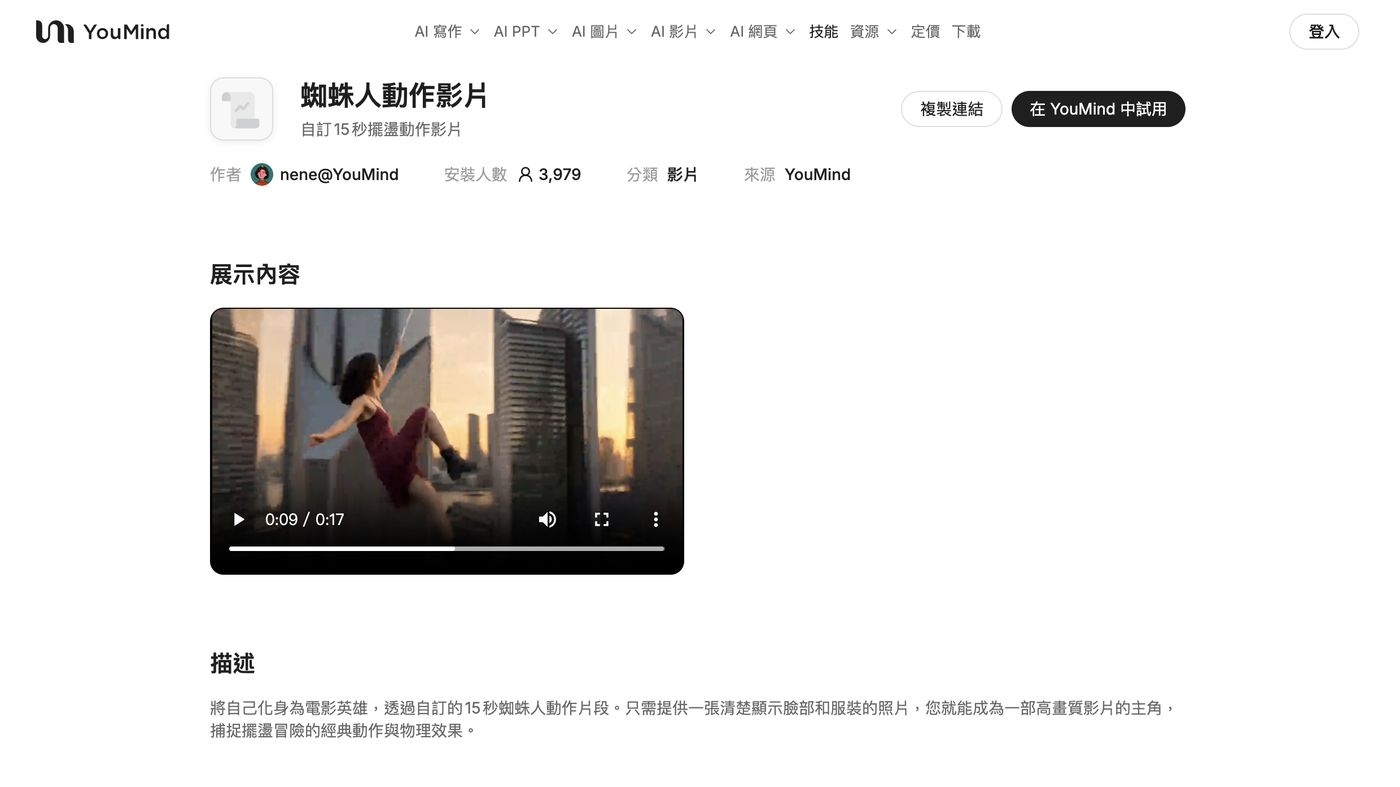
Provide one photo that clearly shows your face and outfit, and it generates a custom 15-second swinging action clip with shots flying between skyscrapers and realistic physics. It makes an eye-catching Reels opener, birthday surprise or fun brand clip.
3. More popular skills
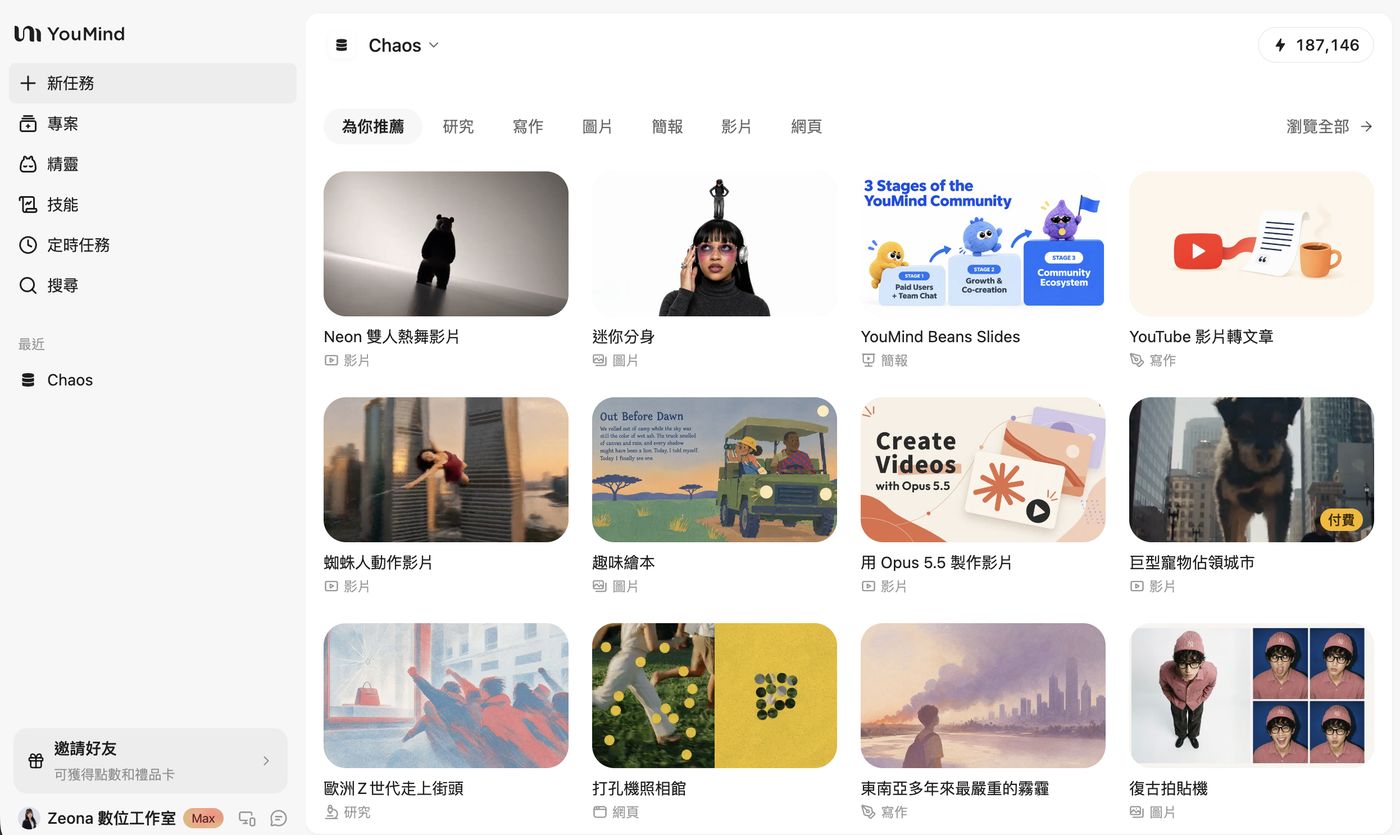
- Mini Me (image)
- Picture Book (image)
- Giant Pet Takes Over the City (video, paid)
- Retro Photo Booth (image)
- One-click AI Background Removal: works on portraits, products, pets and illustrations while keeping the subject as close to the original as possible.
- Make Videos with Opus 5.5 (video)
If you have a prompt workflow of your own that works well, you can also publish it as a skill. The site says: "Publish your skill, set your own price, and earn rewards with every install. Rewards can be redeemed for credits or other perks."
5. AI prompt library: 30,000+ prompts, updated daily, 100% free
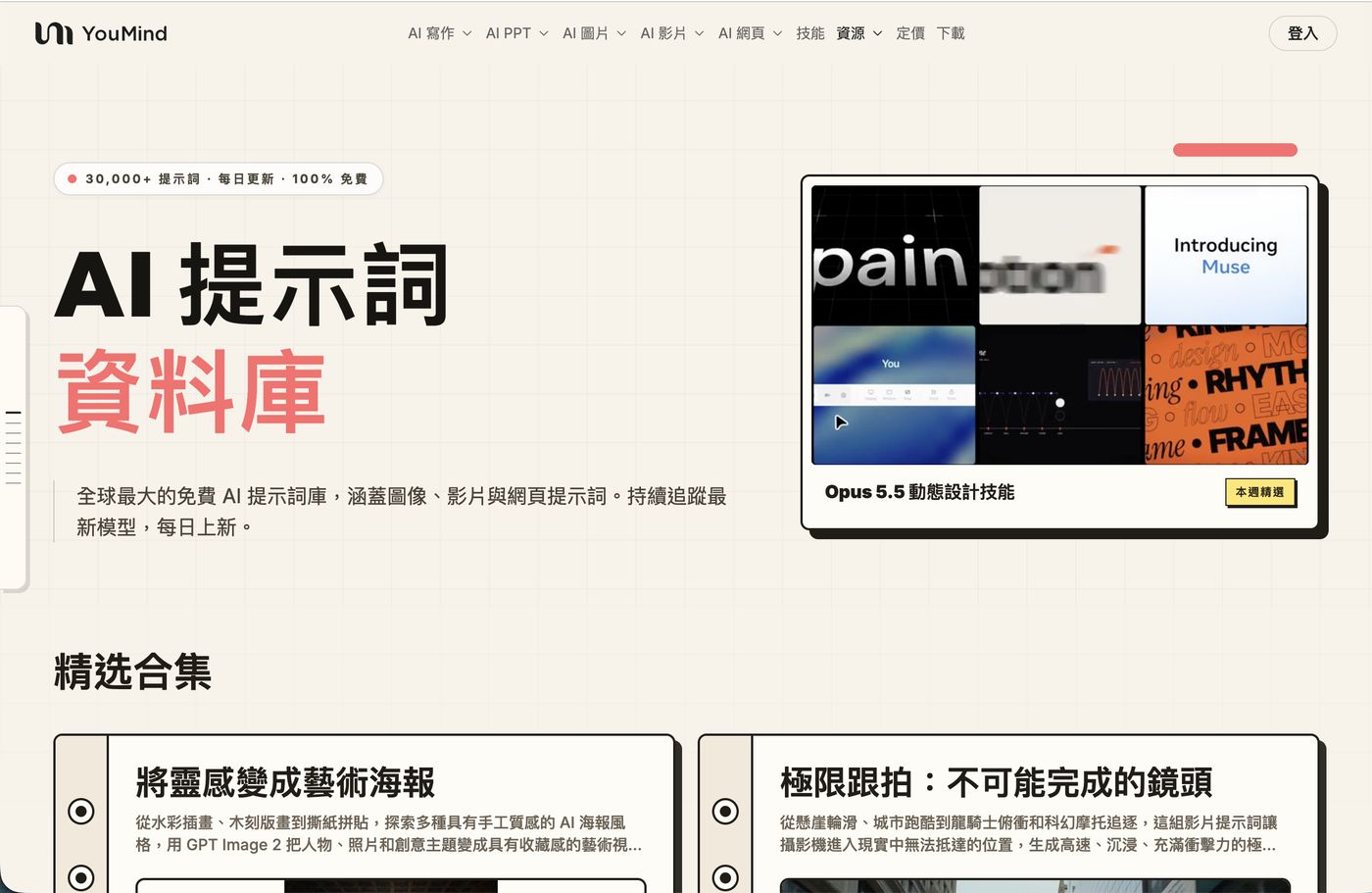
Even if you don't plan to pay, this library is worth bookmarking. YouMind calls it "the world's largest free AI prompt library, covering image, video and web prompts, tracking the latest models and updated daily". You can filter by model (GPT Image 2, Nano Banana Pro, Seedance, Grok Imagine and more) and by use case, style and subject. Every prompt comes with the result, so you can copy the ones you like.
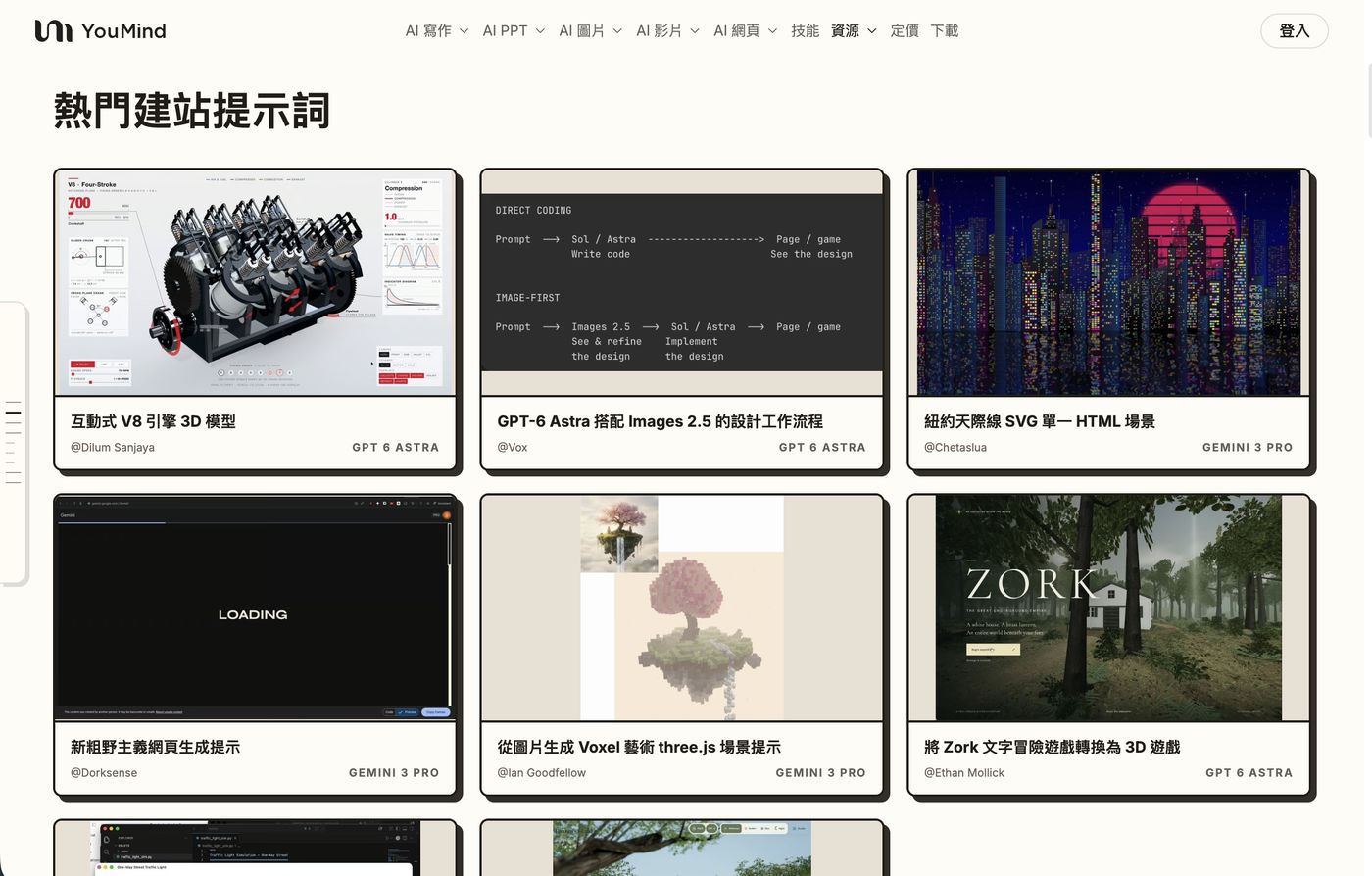
Even web pages: a 3D engine, a pixel skyline, a text adventure game
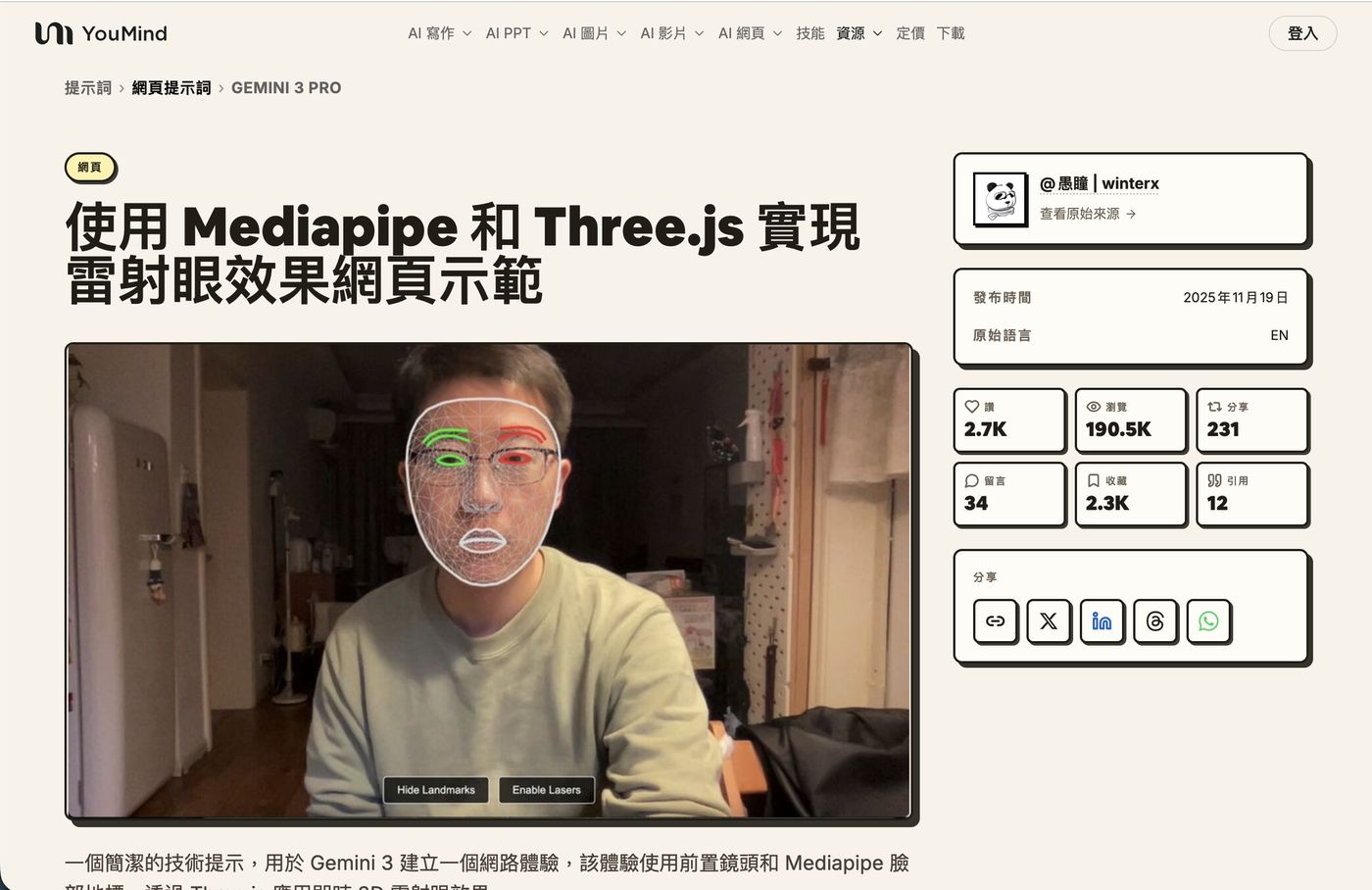
One example I love: "A laser-eye web demo with Mediapipe and Three.js". It uses your computer's front camera to track facial landmarks, then adds 3D laser beams to your eyes in real time. The original post has 190K views and 2,300 saves.
The key part comes next: right under the prompt is a "Generate web page" button. Pick a model (for example Gemini 3.1 Pro), click, and it builds the page inside YouMind. No copying into another tool.
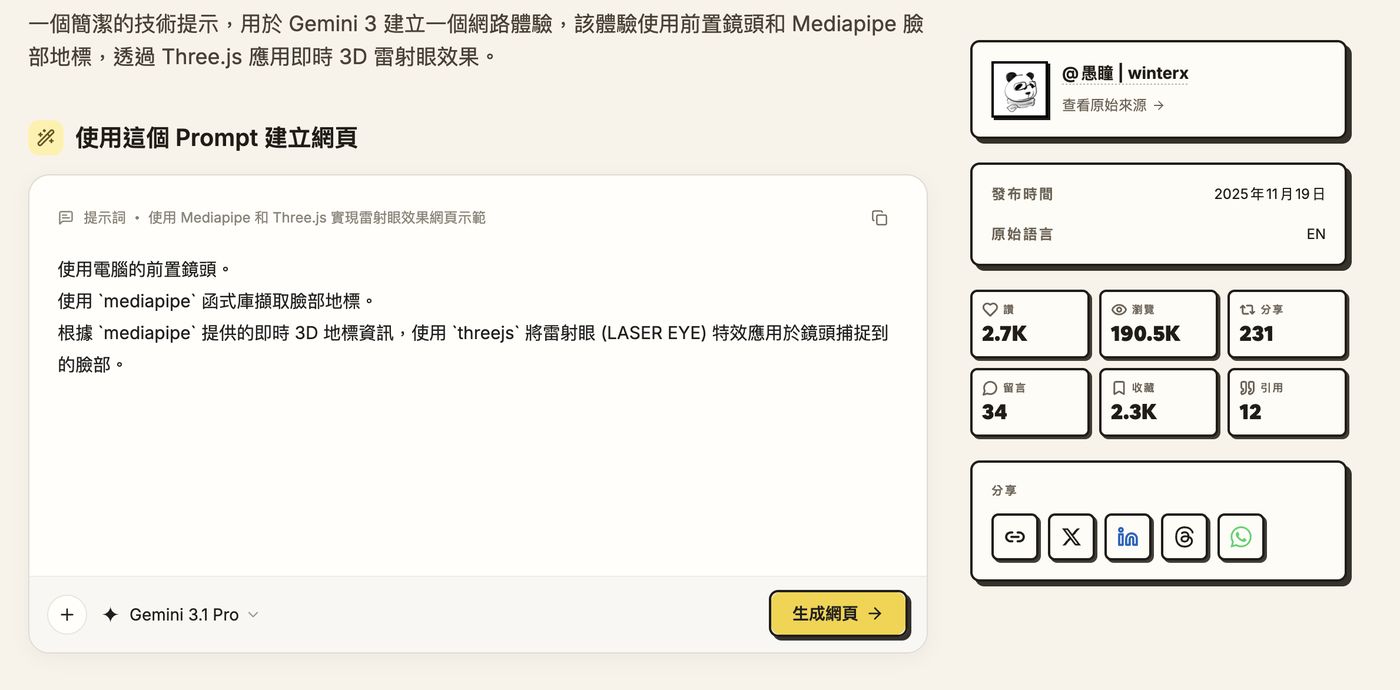
The whole prompt is just three sentences:
Use the computer's front camera.
Use the `mediapipe` library to capture facial landmarks.
Based on the real-time 3D landmark data from `mediapipe`, use `threejs` to apply a LASER EYE effect to the face captured by the camera.
Want to learn to write prompts like this yourself? See my dessert shop website AI prompt, or grab a free prompt kit from the Zeona Toolbox.
6. Projects, Sprite and scheduled tasks: an AI that remembers your work
Projects: one folder per topic
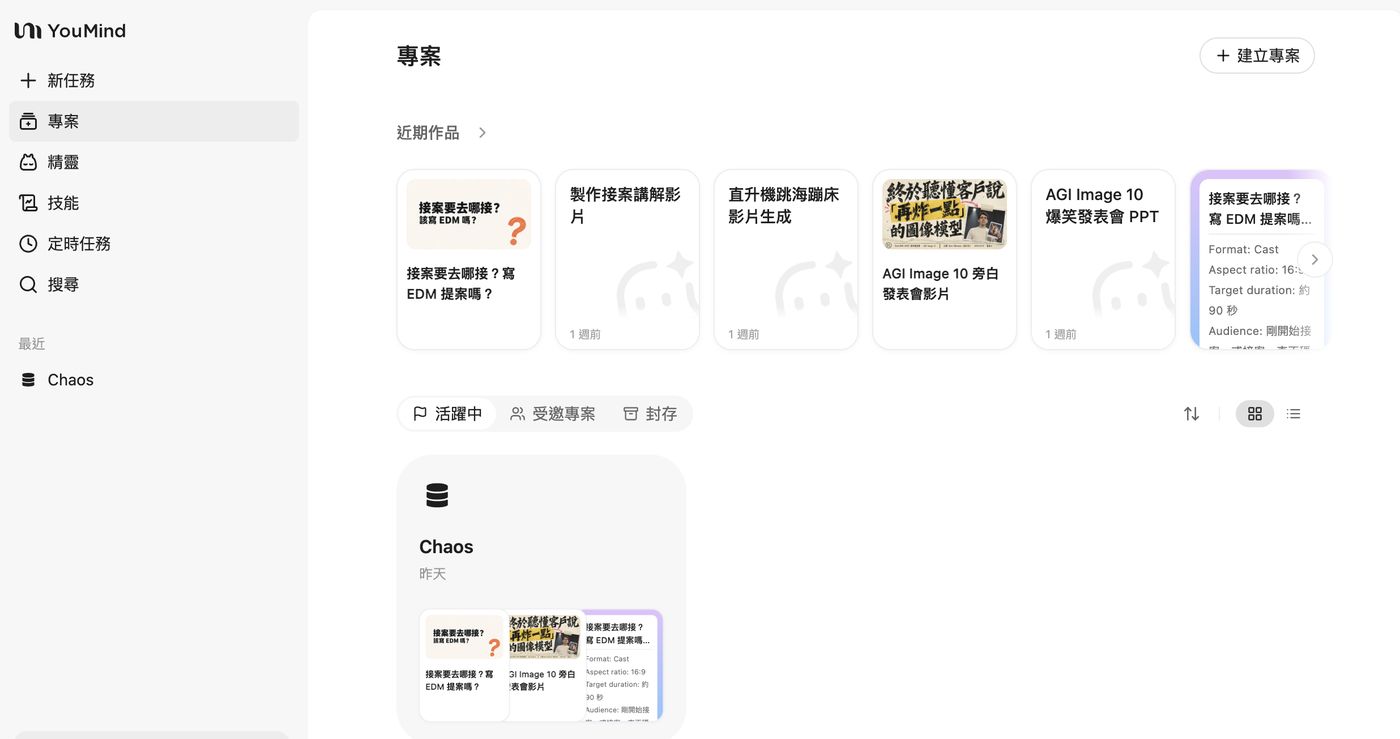
A project works like a folder: the materials, chats and finished work inside it all stay put, and projects others share with you appear under "Invited". I open one project per topic. For example, when I turned my "Where to find freelance clients?" deck into an explainer video, it still remembered everything from before.
Scheduled tasks: let it gather information for you every day
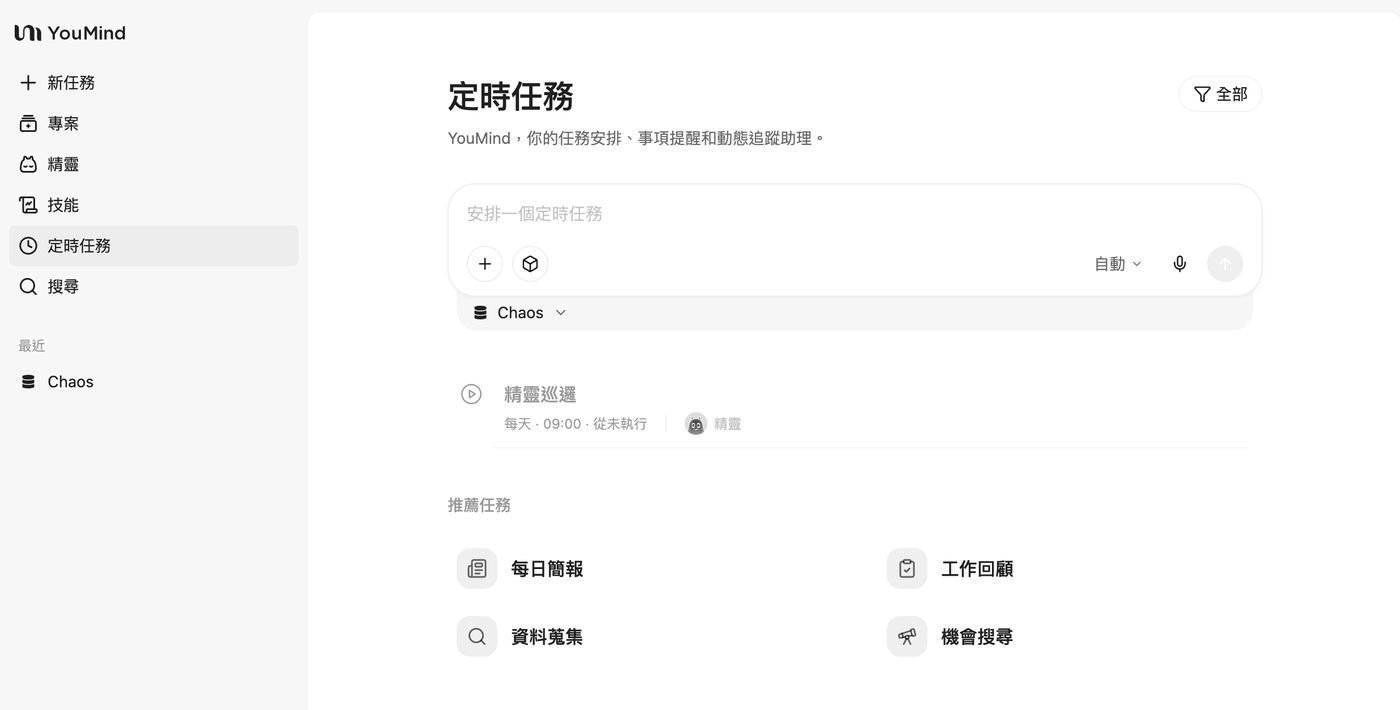
Describe a recurring job in one sentence, such as "Summarize AI news for me every morning at 9". The four suggested tasks are daily briefing, work review, research and opportunity search. "Sprite" is YouMind's AI assistant character; you can set it to do a daily check-in, and the official changelog says it now works in Lark too.
7. Getting started in three steps: make something on day one
- Sign up: create an account at YouMind. Free accounts come with trial credits.
- Try a skill first: click "Skills" on the left, pick a free one (for example YouTube Video to Article), follow the prompts to upload or paste a link, and get a feel for what it can do.
- Start your own project: add materials from a real task (report PDFs, reference URLs) and type something like "Make an 8-slide deck for ___ so they ___". Review the outline, then let it generate.
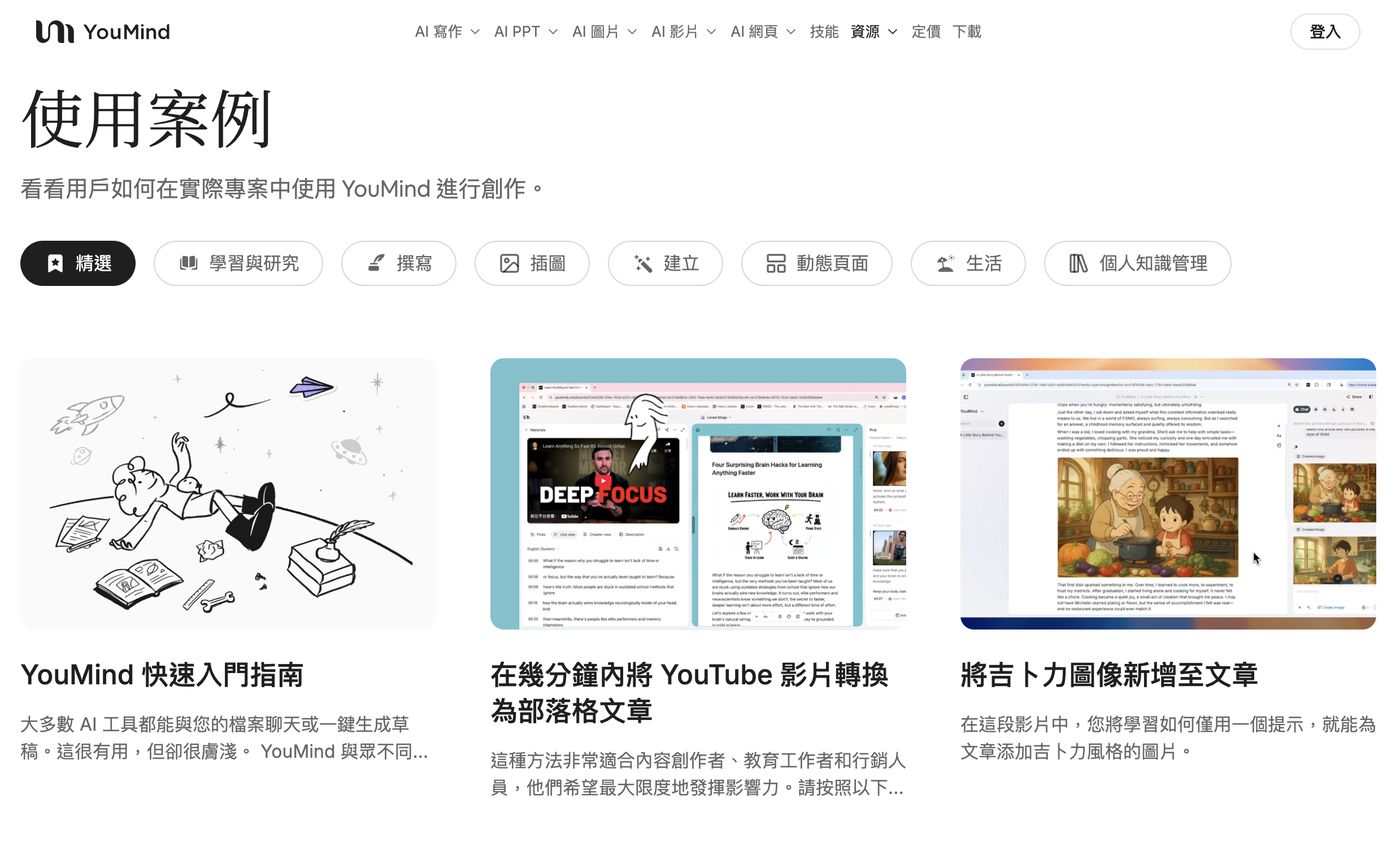
When I logged in on Oct 30, 2026, the in-app banner said "Black Friday deal starts early: save 50% on the Max plan". If you use a lot of credits (frequent videos and slides), it's worth a look. Check the YouMind pricing page for current plans and credits.
8. Who is YouMind for?
| You are | Start with |
|---|---|
| Freelancer or consultant | PDFs + web pages → client pitch deck; then turn the same content into an explainer video |
| Marketer or social media manager | YouTube to article, image ideas from the prompt library, viral video skills for Reels |
| Online seller or small brand | Product Photo Studio (white-background + lifestyle images), Packaging Story Studio, one-click background removal |
| Teacher or student | Turn course materials into lessons or slides, then into videos |
| Learning to build web pages | Hit "Generate web page" on website prompts and study how others write them |
9. What to know before you start
- Credit-based: images, videos and slides all use credits, and videos and top-tier models use more. Skill cards show an estimated cost, so check before you run one.
- PPTX export is images: the official tutorial says exported PPTX files are "one bitmap per slide, with no editable text objects and no speaker notes". To change text, edit in YouMind and export again. If a client needs a file they can edit in PowerPoint, agree on that first.
- Check your sources: some pages can't be read (in the official example, a Stanford report only returned its navigation), so verify important numbers against the original.
- No Windows desktop app yet: on Windows, use the web app or the Chrome extension.
FAQ
Q1: Is YouMind free?
You can sign up and try it for free, and free accounts get trial credits; the prompt library is completely free. If you make a lot of slides and videos you'll use credits faster, and that's when a paid plan makes sense.
Q2: How is YouMind different from ChatGPT or NotebookLM?
YouMind focuses on going from materials to finished work in one place: in a single project you can research, write, build slides, generate images, make videos and build web pages, while switching between Claude, GPT, Gemini and other models. If you often turn piles of materials into something you hand over, it saves the time spent moving things between tools.
Q3: Is there an English interface?
Yes. The main site (youmind.com) is in English, and there is a Traditional Chinese version as well; on the Chinese site, library prompts are shown translated.
Q4: Can I use it on my phone?
Yes. There are iOS and Android apps, a Mac desktop app (beta) and a Chrome extension.
Q5: Can I use the images and videos commercially?
Check YouMind's terms of service. When a skill uses someone's photo (like the Spider-Man video skill), only use photos of yourself or of people who have agreed.
Sign up for YouMind free and build your first deck →
Further reading
- Part 2: YouMind hands-on tutorial — make explainer and pet beat-sync videos with Skills, then edit music, voice and subtitles
- What are Instinct, Grok Bot, Muse and dots? Comparing 2026's four personal AI agents
- Style DNA: reverse-engineer the prompt behind an image
- MeiGen AI prompt gallery guide
- Zeona Toolbox: free prompt kits
Sources
- YouMind: homepage, Skills, AI prompt library, downloads, changelog (checked Oct 30, 2026)
- YouMind official blog: How to turn PDFs, web pages and notes into a client deck with YouMind (full tutorial) (Oct 25, 2026)
- Logged-in screens (workspace, projects, scheduled tasks) are screenshots from the author's own YouMind account.